

About n8n
n8n is an open-source workflow automation tool that helps users automate tasks by connecting different applications and services. It supports low-code/no-code workflows, allowing you to build complex automation flows by drag-and-drop without writing much code. n8n provides a flexible platform for customizing and extending workflows to meet various automation needs. By connecting MixRoute API, you can use mainstream models like GPT, Gemini, and Claude in n8n to build intelligent automation workflows.Use OpenAI Account credentials for configuration. GPT, Gemini, Claude, and other models are all set up in the OpenAI account settings.
Prerequisites
Requirements
- A valid MixRoute API Key (create at console)
- MixRoute API URL:
https://api.mixroute.ai/v1
Setup Steps
Step 1: Create or Edit OpenAI Credentials
- In n8n, click Settings (gear icon) or open workflow editor
- Go to Credentials → Add Credential
- Search and select OpenAI
- You can also edit an existing OpenAI credential
Step 2: Enter MixRoute API Parameters
In the OpenAI credential configuration: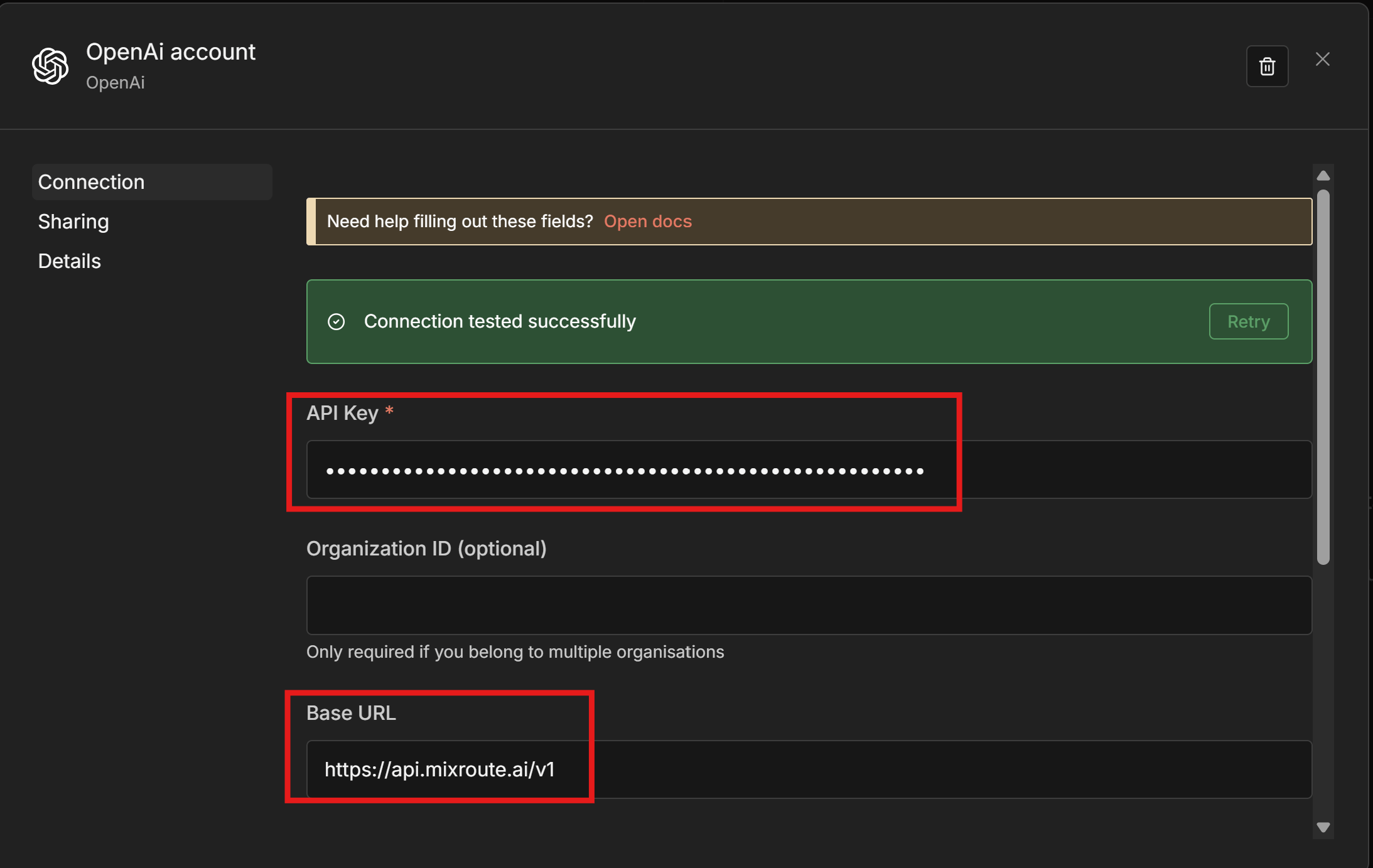
Step 3: Select Model
- Add OpenAI or Chat OpenAI node to your workflow
- Select the MixRoute credential you configured
- Choose or enter a model ID in Model, e.g.:
gpt-5.5gemini-3.5-flashclaude-opus-4-8- See Model List for more
Step 4: Test Workflow
Save and run the workflow. If it returns a valid response, the connection is successful.Key Settings
- API Key: From MixRoute console, do not use official OpenAI API key
- Base URL: Must be
https://api.mixroute.ai/v1 - Model ID: Must match the model names exposed by MixRoute; see Model Center
Troubleshooting
- Connection failed: Verify Base URL is correct and includes
/v1 - Model not found: Ensure model ID matches MixRoute model center
- Authentication failed: Check that API Key is valid and copied completely