

Introduction
Cherry Studio is a powerful AI chat client that supports multiple large language models. With MixRoute API, you can easily use various mainstream AI models in Cherry Studio.Quick Integration
1. Get API Key
Visit MixRoute to get your API key.2. Configuration
1
Open App
Open Cherry Studio application
2
Settings
Click the settings icon on the left to enter settings page
3
Select Service
Select “Model Service” option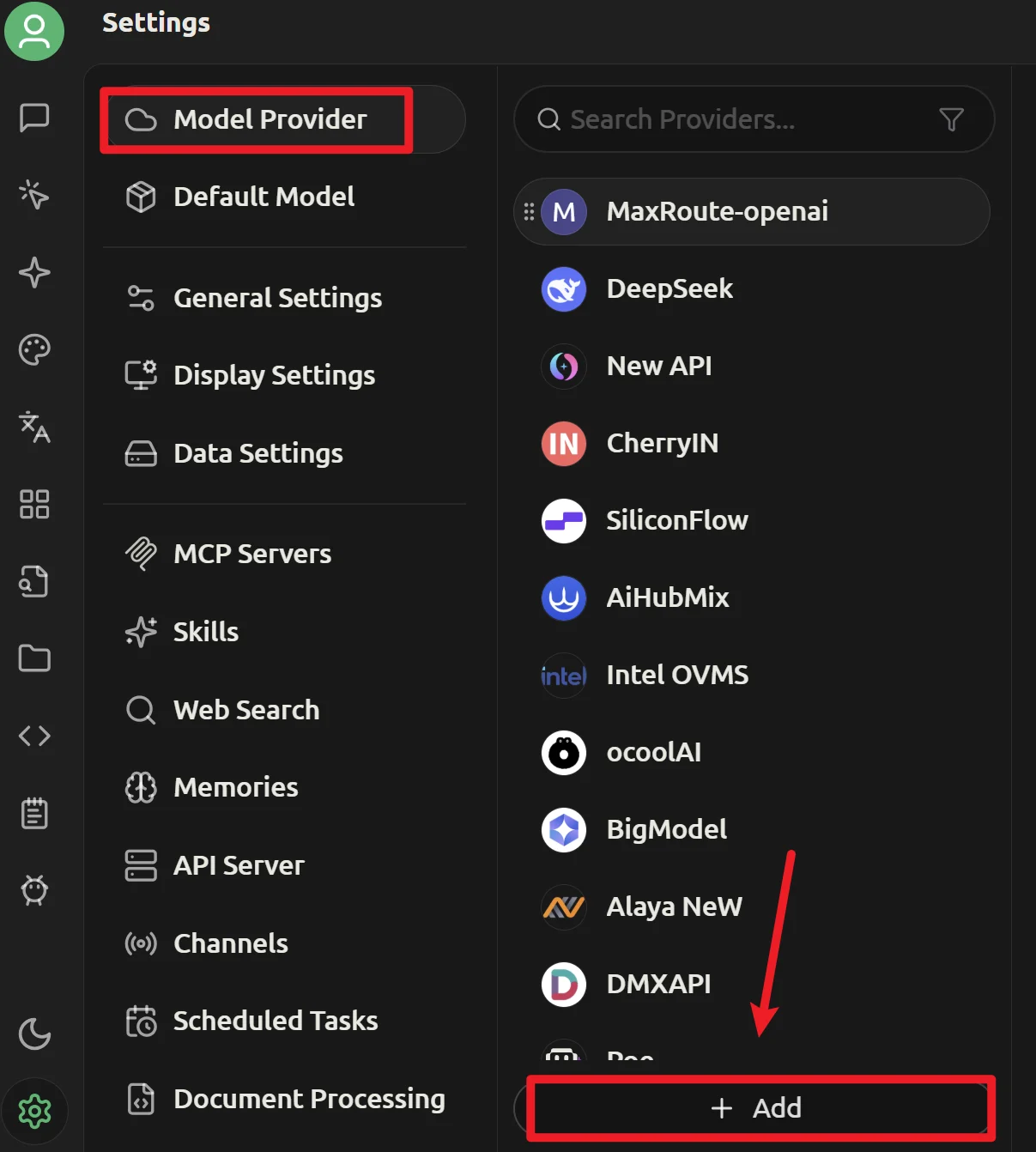
4
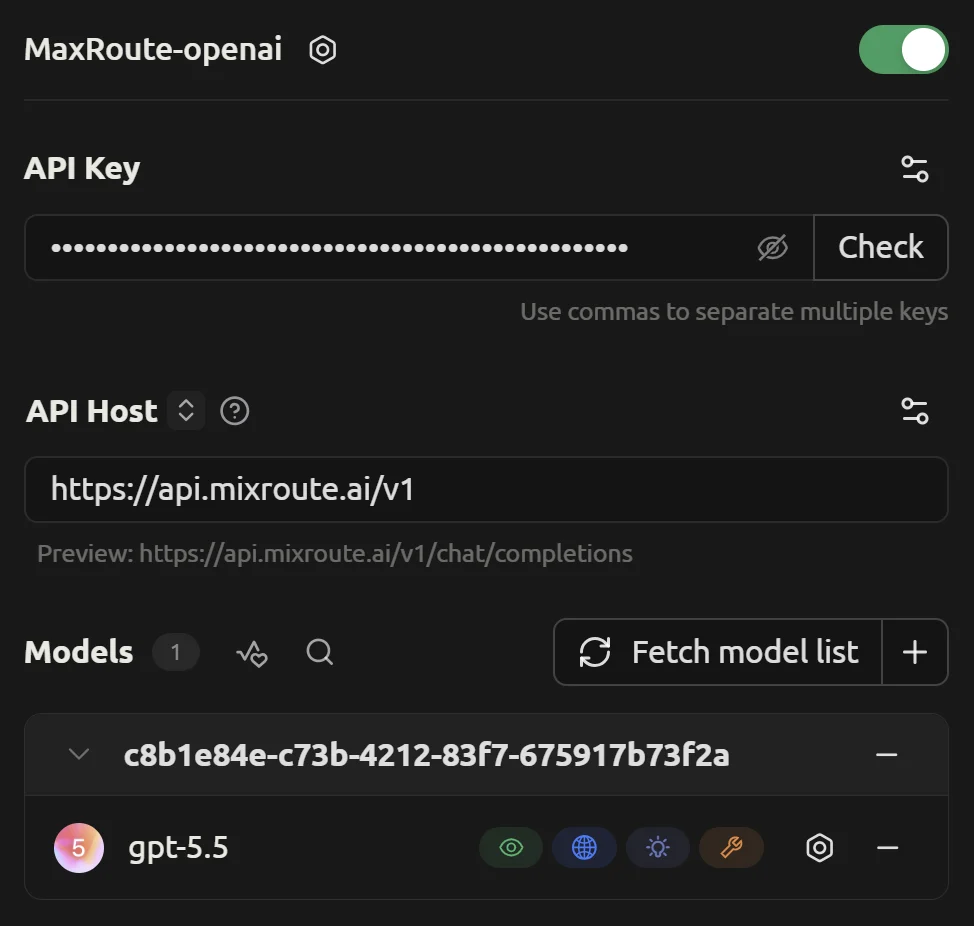
Fill Config
- Traditional API Node
- Smart Routing Node
5
Save
Click ”➕ Add” to save
3. Add Models
- Search for target model in the model search box (e.g.,
gpt-5.5). If using Smart Routing mode, useautodirectly for task routing. - Click the icon next to model name to configure
- Enable/disable model variants as needed
- Use right-side buttons for detailed configuration
Advanced Features
Image Support
If using a model that supports images (such asgpt-5.5 or gemini-3.5-flash):
- Enable “Images” in settings
- Select a vision-capable model
- Upload images directly in chat
Streaming Output
Cherry Studio supports streaming output by default for smoother conversations.Troubleshooting
Connection Failed
Connection Failed
- Check if API key is correct
- Confirm API URL is
https://api.mixroute.ai - Verify network connection
Model Recommendations
Daily Chat
Recommended:
gpt-5.4-mini (lightweight) or gpt-5.5 (high quality)Multimodal Tasks
Recommended:
gemini-3.5-flash or gpt-5.5Long Context
Recommended:
claude-sonnet-5 or gemini-3.5-flash (1M context)Complex Reasoning
Recommended:
claude-opus-4-8 or grok-4.20-beta-0309-reasoningTips
- Choose wisely: Match models to task requirements
- Stay updated: Follow new model releases
- Monitor usage: Check usage via Mixroute Api console