> ## Documentation Index
> Fetch the complete documentation index at: https://docs.mixroute.ai/llms.txt
> Use this file to discover all available pages before exploring further.
# OpenWork
> OpenWork 整合指南:透過 MixRoute 在 OpenWork 中統一使用多模型程式設計助手
## 一、產品簡介
OpenWork 是一款開源 AI 程式設計助手,支援多模型接入與本地部署。透過 **MixRoute**,可在 OpenWork 中統一使用各類主流與最新模型(如 GPT、Claude、GLM 等),並支援自訂提供商與模型配置。
**下載地址**:[https://openworklabs.com/](https://openworklabs.com/)
## 二、快速配置(MixRoute)
### 1. 取得 API 金鑰
在 [Mixroute Api 控制台](https://api.mixroute.ai/) 建立並複製 API 金鑰。
### 2. 在 OpenWork 中配置自訂提供商
OpenWork 支援透過 JSON 配置檔案新增自訂供應商,建議在工作目錄下進行配置,避免使用全域配置。
在 OpenWork 的工作目錄下建立或編輯配置檔案:
`/path-to-your-workspace/.config/opencode/opencode.json`
不建議在全域位置 `~/.config/opencode/opencode.json` 新增自訂供應商。OpenWork 優先使用工作目錄的配置,全域配置會被覆蓋且不生效。
根據接入方式,在配置檔案中新增對應的供應商配置:
對於支援 Chat Completions 的模型,使用 `@ai-sdk/openai-compatible` 接入:
```json theme={null}
{
"$schema": "https://opencode.ai/config.json",
"disabled_providers": [],
"provider": {
"mixroute-compatible": {
"name": "mixroute-compatible",
"npm": "@ai-sdk/openai-compatible",
"options": {
"baseURL": "https://api.mixroute.ai/v1",
"apiKey": "{env:MIXROUTE_API_KEY}"
},
"models": {
"glm-5.3": {
"name": "glm-5.3"
}
}
}
}
}
```
使用 `@ai-sdk/openai-compatible` 可以接入絕大多數支援 Chat Completions 協定的模型,相容性最廣。
部分模型需要使用 Responses API 協定,透過 `@ai-sdk/openai` 接入:
```json theme={null}
{
"mixroute-responses": {
"name": "MixRoute OpenAI Responses",
"npm": "@ai-sdk/openai",
"options": {
"baseURL": "https://api.mixroute.ai/v1",
"apiKey": "{env:MIXROUTE_API_KEY}"
},
"models": {
"gpt-5.6-luna": {
"name": "gpt-5.6-luna"
},
"gpt-5.6-terra": {
"name": "gpt-5.6-terra"
},
"gpt-5.6-sol": {
"name": "gpt-5.6-sol"
}
}
}
}
```
關於哪些模型需要走 Responses API,詳見下方[第三章](#三部分模型需使用-responses-api重要)。
Claude 系列模型透過 `@ai-sdk/anthropic` 接入:
```json theme={null}
{
"mixroute-messages": {
"name": "MixRoute Anthropic messages",
"npm": "@ai-sdk/anthropic",
"options": {
"baseURL": "https://api.mixroute.ai/v1",
"apiKey": "{env:MIXROUTE_API_KEY}"
},
"models": {
"claude-sonnet-5": {
"name": "claude-sonnet-5"
}
}
}
}
```
儲存配置檔案後,重新啟動 OpenWork。在模型選擇中即可看到已配置的供應商及其模型。
**完整配置範例**(合併所有供應商):
```json theme={null}
{
"$schema": "https://opencode.ai/config.json",
"disabled_providers": [],
"provider": {
"mixroute-responses": {
"name": "MixRoute OpenAI Responses",
"npm": "@ai-sdk/openai",
"options": {
"baseURL": "https://api.mixroute.ai/v1",
"apiKey": "{env:MIXROUTE_API_KEY}"
},
"models": {
"gpt-5.6-luna": {
"name": "gpt-5.6-luna"
},
"gpt-5.6-terra": {
"name": "gpt-5.6-terra"
},
"gpt-5.6-sol": {
"name": "gpt-5.6-sol"
}
}
},
"mixroute-messages": {
"name": "MixRoute Anthropic messages",
"npm": "@ai-sdk/anthropic",
"options": {
"baseURL": "https://api.mixroute.ai/v1",
"apiKey": "{env:MIXROUTE_API_KEY}"
},
"models": {
"claude-sonnet-5": {
"name": "claude-sonnet-5"
}
}
},
"mixroute-compatible": {
"name": "mixroute-compatible",
"npm": "@ai-sdk/openai-compatible",
"options": {
"baseURL": "https://api.mixroute.ai/v1",
"apiKey": "{env:MIXROUTE_API_KEY}"
},
"models": {
"glm-5.3": {
"name": "glm-5.3"
}
}
}
}
}
```
### 3. 切換模型
配置完成後,在對話介面或設定中即可選擇已配置的供應商與模型(如 `mixroute-responses/gpt-5.6-luna`)進行對話。
* API 金鑰建議透過環境變數 `MIXROUTE_API_KEY` 注入,避免明文寫在配置檔案中。
* 若使用自建或備用服務,將 **基礎 URL** 改為對應地址,例如 `http://your-server:3003/v1`。
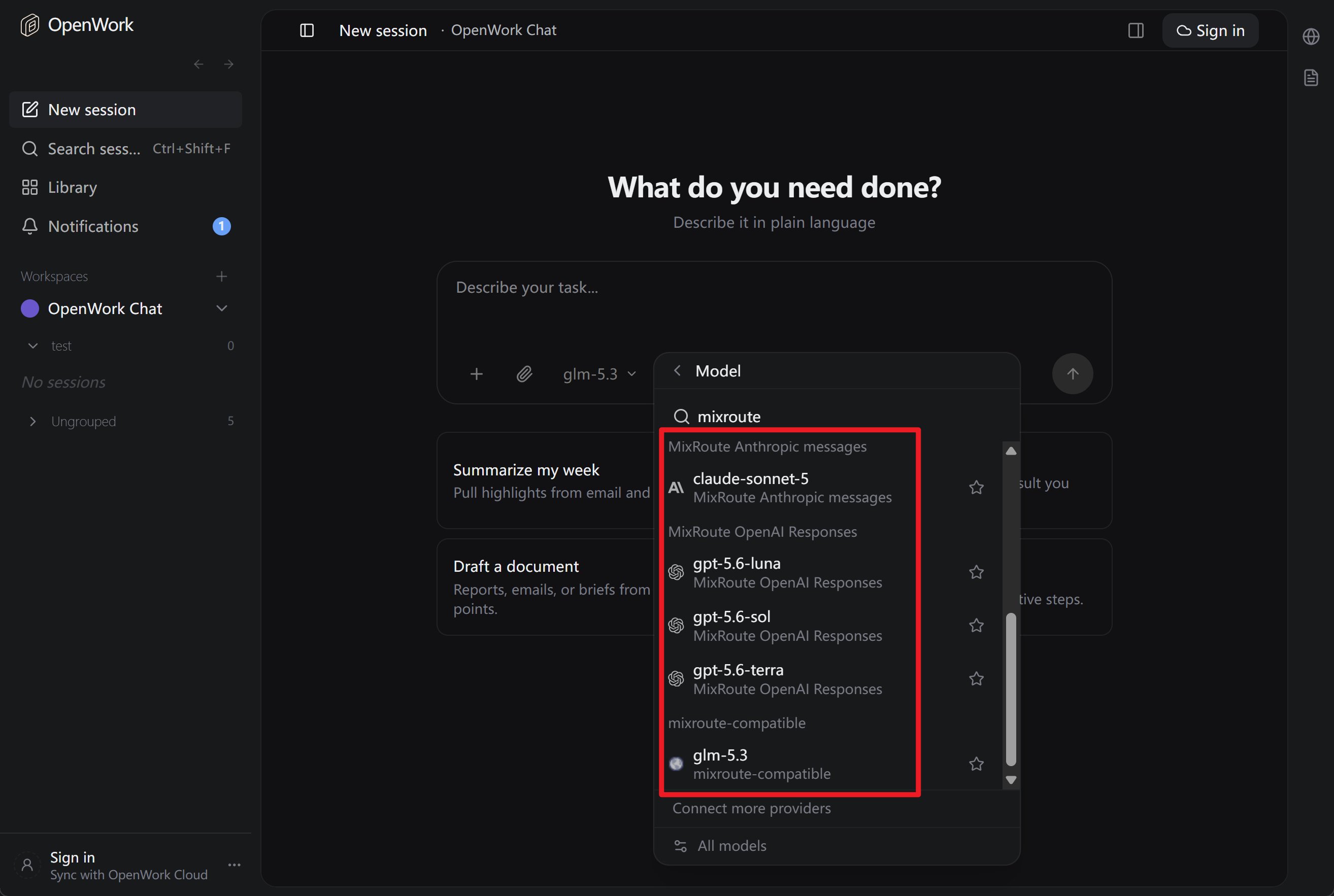 ### 4. 啟動 OpenWork 並建立對話
配置完成後,啟動 OpenWork 即可在模型選擇清單中看到已新增的模型,開始對話。
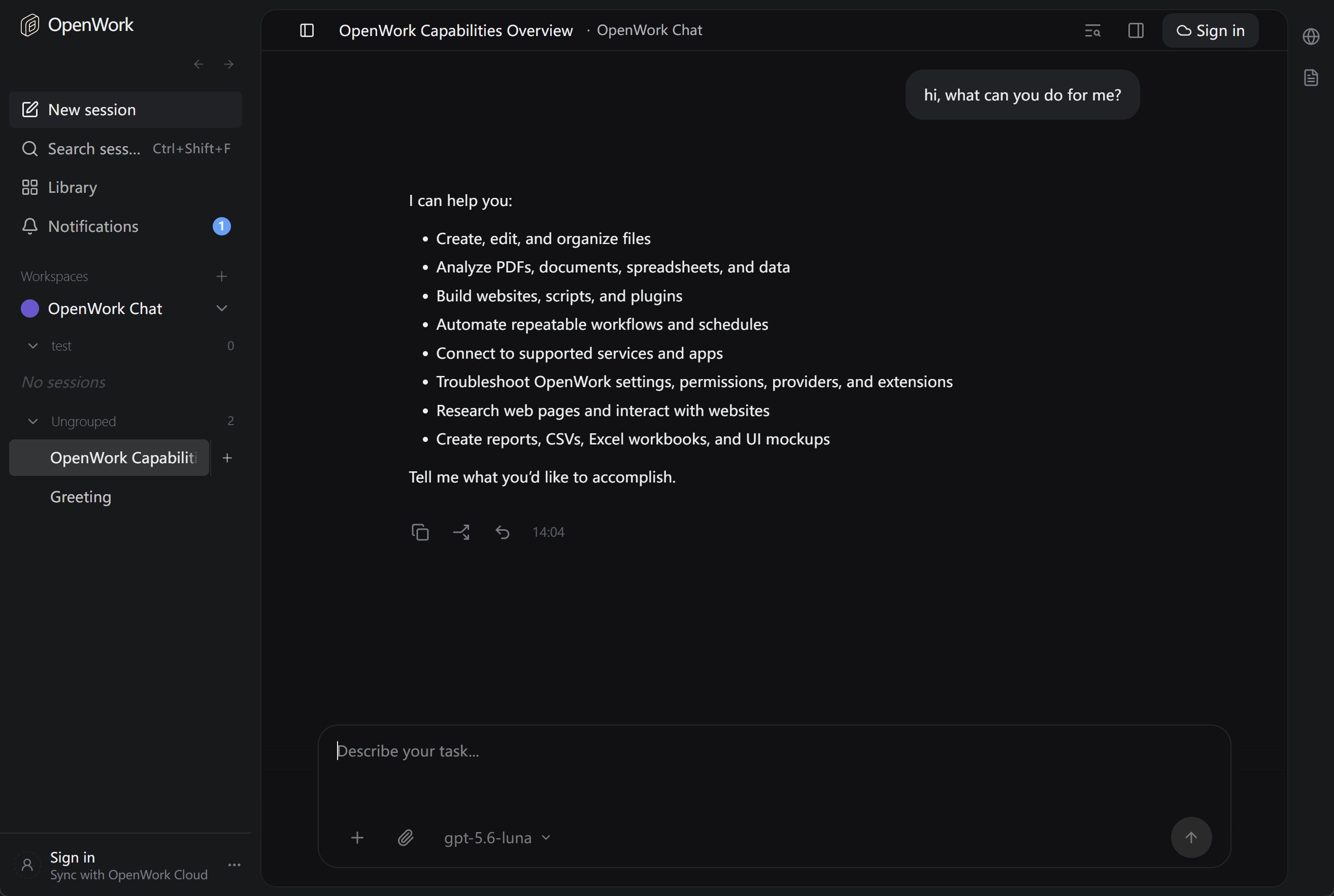
### 4. 啟動 OpenWork 並建立對話
配置完成後,啟動 OpenWork 即可在模型選擇清單中看到已新增的模型,開始對話。
 ## 三、部分模型需使用 Responses API(重要)
部分模型的存取介面與常規 Chat Completions 不同,需使用 **Responses API**。若在 OpenWork 中選用這類模型時出現類似錯誤:
> The chatCompletion operation does not work with the specified model. Please choose a different model and try again.
說明當前請求走了 **Chat Completions**,而該模型在服務端只開放 **Responses API**,需透過配置改為使用正確介面。
### 3.1 需要走 Responses API 的模型(典型)
| 模型 ID / 系列 | 說明 |
| ----------------- | ------------------------------- |
| **gpt-5.6-luna** | GPT-5.6 Luna,僅支援 Responses API |
| **gpt-5.6-terra** | GPT-5.6 Terra,僅支援 Responses API |
| **gpt-5.6-sol** | GPT-5.6 Sol,僅支援 Responses API |
### 3.2 在 OpenWork 中如何配置
透過**在配置檔案中新增獨立的供應商並使用 `@ai-sdk/openai`**,即可讓 OpenWork 對該模型使用 **Responses API**。
具體配置方式見上方[第二步的 Responses API 接入說明](#responses-api-接入gpt-5x-codex-等模型),在 `opencode.json` 中新增 `mixroute-responses` 供應商即可。
### 3.3 小結
| 場景 | 做法 |
| ---------------------------------------------------------------- | --------------------------------------------------------- |
| 使用 **gpt-5.6-luna / gpt-5.6-terra / gpt-5.6-sol** 等 Responses 模型 | 在 `opencode.json` 中新增獨立供應商,透過 Responses 方式存取 |
| 使用 **glm-5.3、claude-sonnet-5** 等常規模型 | 使用 `@ai-sdk/openai-compatible` 或 `@ai-sdk/anthropic` 接入即可 |
## 四、參考連結
* OpenWork 官網與下載:[https://openworklabs.com/](https://openworklabs.com/)
* OpenCode 配置與模型說明:[Models](https://opencode.ai/docs/models)、[Providers](https://opencode.ai/docs/providers)
* MixRoute 控制台:[https://api.mixroute.ai/](https://api.mixroute.ai/)
## 三、部分模型需使用 Responses API(重要)
部分模型的存取介面與常規 Chat Completions 不同,需使用 **Responses API**。若在 OpenWork 中選用這類模型時出現類似錯誤:
> The chatCompletion operation does not work with the specified model. Please choose a different model and try again.
說明當前請求走了 **Chat Completions**,而該模型在服務端只開放 **Responses API**,需透過配置改為使用正確介面。
### 3.1 需要走 Responses API 的模型(典型)
| 模型 ID / 系列 | 說明 |
| ----------------- | ------------------------------- |
| **gpt-5.6-luna** | GPT-5.6 Luna,僅支援 Responses API |
| **gpt-5.6-terra** | GPT-5.6 Terra,僅支援 Responses API |
| **gpt-5.6-sol** | GPT-5.6 Sol,僅支援 Responses API |
### 3.2 在 OpenWork 中如何配置
透過**在配置檔案中新增獨立的供應商並使用 `@ai-sdk/openai`**,即可讓 OpenWork 對該模型使用 **Responses API**。
具體配置方式見上方[第二步的 Responses API 接入說明](#responses-api-接入gpt-5x-codex-等模型),在 `opencode.json` 中新增 `mixroute-responses` 供應商即可。
### 3.3 小結
| 場景 | 做法 |
| ---------------------------------------------------------------- | --------------------------------------------------------- |
| 使用 **gpt-5.6-luna / gpt-5.6-terra / gpt-5.6-sol** 等 Responses 模型 | 在 `opencode.json` 中新增獨立供應商,透過 Responses 方式存取 |
| 使用 **glm-5.3、claude-sonnet-5** 等常規模型 | 使用 `@ai-sdk/openai-compatible` 或 `@ai-sdk/anthropic` 接入即可 |
## 四、參考連結
* OpenWork 官網與下載:[https://openworklabs.com/](https://openworklabs.com/)
* OpenCode 配置與模型說明:[Models](https://opencode.ai/docs/models)、[Providers](https://opencode.ai/docs/providers)
* MixRoute 控制台:[https://api.mixroute.ai/](https://api.mixroute.ai/)