> ## Documentation Index
> Fetch the complete documentation index at: https://docs.mixroute.ai/llms.txt
> Use this file to discover all available pages before exploring further.
# Claude 插件(VS Code)
> Claude Code for VS Code 插件安装与配置指南
## 第一步:安装或更新 Claude Code 插件
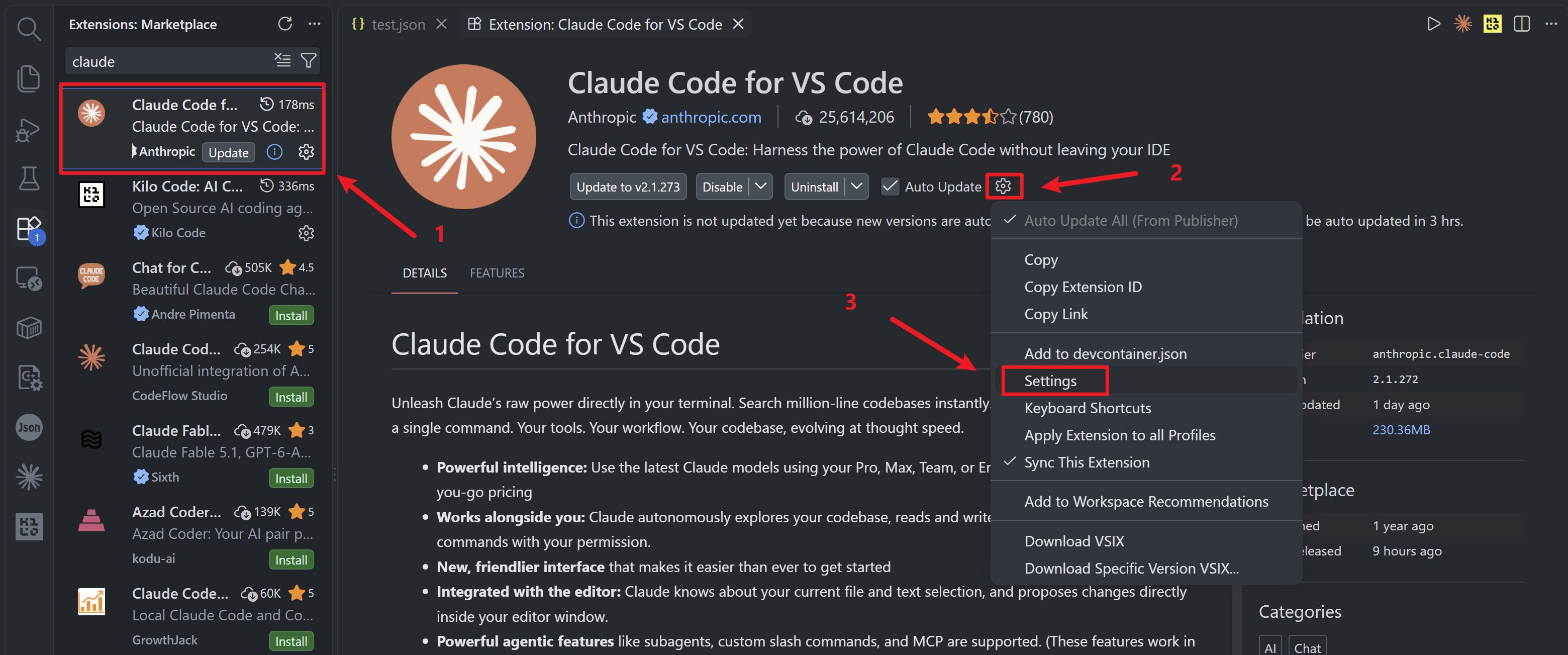
1. 打开 VS Code 编辑器,进入左侧「扩展」面板(快捷键:Ctrl+Shift+X)
2. 在扩展市场搜索框中输入「Claude Code for VS Code」,找到 Anthropic 官方发布的插件(标识为「anthropic.claude-code」)
3. 插件核心特性:支持 Claude 最新模型、终端直接调用、代码库自动分析、子代理/自定义斜杠命令等智能功能
 ## 第二步:配置 settings.json 文件
建议不使用实验性能力时,添加 `{"name":"CLAUDE_CODE_DISABLE_EXPERIMENTAL_BETAS","value":1}`禁用以保证兼容
### 2.1 打开配置文件
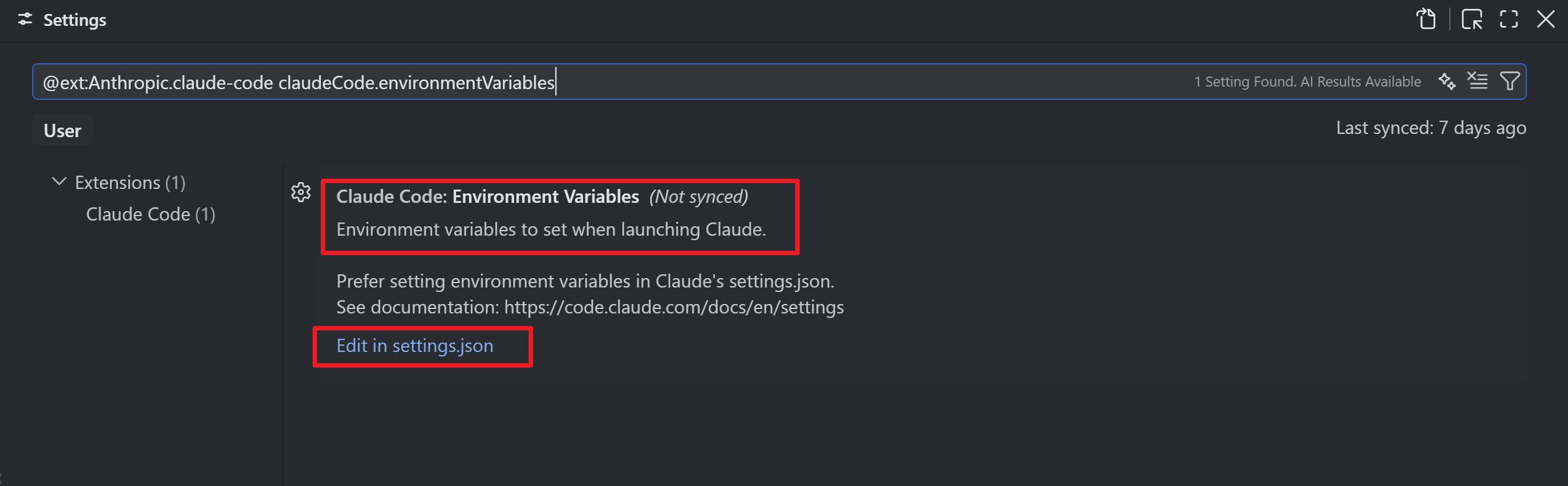
1. 点击 VS Code 左下角「设置」图标(或使用快捷键 Ctrl+,),在设置页面搜索「@ext:Anthropic.claude-code」筛选插件专属配置
2. 找到「Claude-code: Environment Variables」选项,点击右侧「Edit in settings.json」
## 第二步:配置 settings.json 文件
建议不使用实验性能力时,添加 `{"name":"CLAUDE_CODE_DISABLE_EXPERIMENTAL_BETAS","value":1}`禁用以保证兼容
### 2.1 打开配置文件
1. 点击 VS Code 左下角「设置」图标(或使用快捷键 Ctrl+,),在设置页面搜索「@ext:Anthropic.claude-code」筛选插件专属配置
2. 找到「Claude-code: Environment Variables」选项,点击右侧「Edit in settings.json」
 ### 2.2 添加核心配置
在 settings.json 中补充以下完整配置(按需修改模型版本和显示位置):
```jsonc theme={null}
{
"claudeCode.preferredLocation": "panel",
"claudeCode.allowDangerouslySkipPermissions": true,
"claudeCode.selectedModel": "claude-sonnet-5",
"claudeCode.environmentVariables": [
{
"name": "ANTHROPIC_BASE_URL",
"value": "https://api.mixroute.ai"
},
{
"name": "ANTHROPIC_AUTH_TOKEN",
"value": "mixroute_api_key"
},
{
"name": "CLAUDE_CODE_DISABLE_EXPERIMENTAL_BETAS",
"value": "1"
}
]
}
```
## 配置说明
| 配置项 | 说明 |
| - | - |
| `claudeCode.preferredLocation` | 插件显示位置,可选 `panel`(底部面板)或 `sidebar`(侧边栏) |
| `claudeCode.selectedModel` | 默认使用的模型 |
| `ANTHROPIC_BASE_URL` | Mixroute Api 服务地址 |
| `ANTHROPIC_AUTH_TOKEN` | 您的 API 密钥 |
## 验证配置
1. 配置完成后,重启 VS Code
2. 打开命令面板(Ctrl+Shift+P),输入「Claude」
3. 选择「Claude Code: Open Panel」打开插件面板
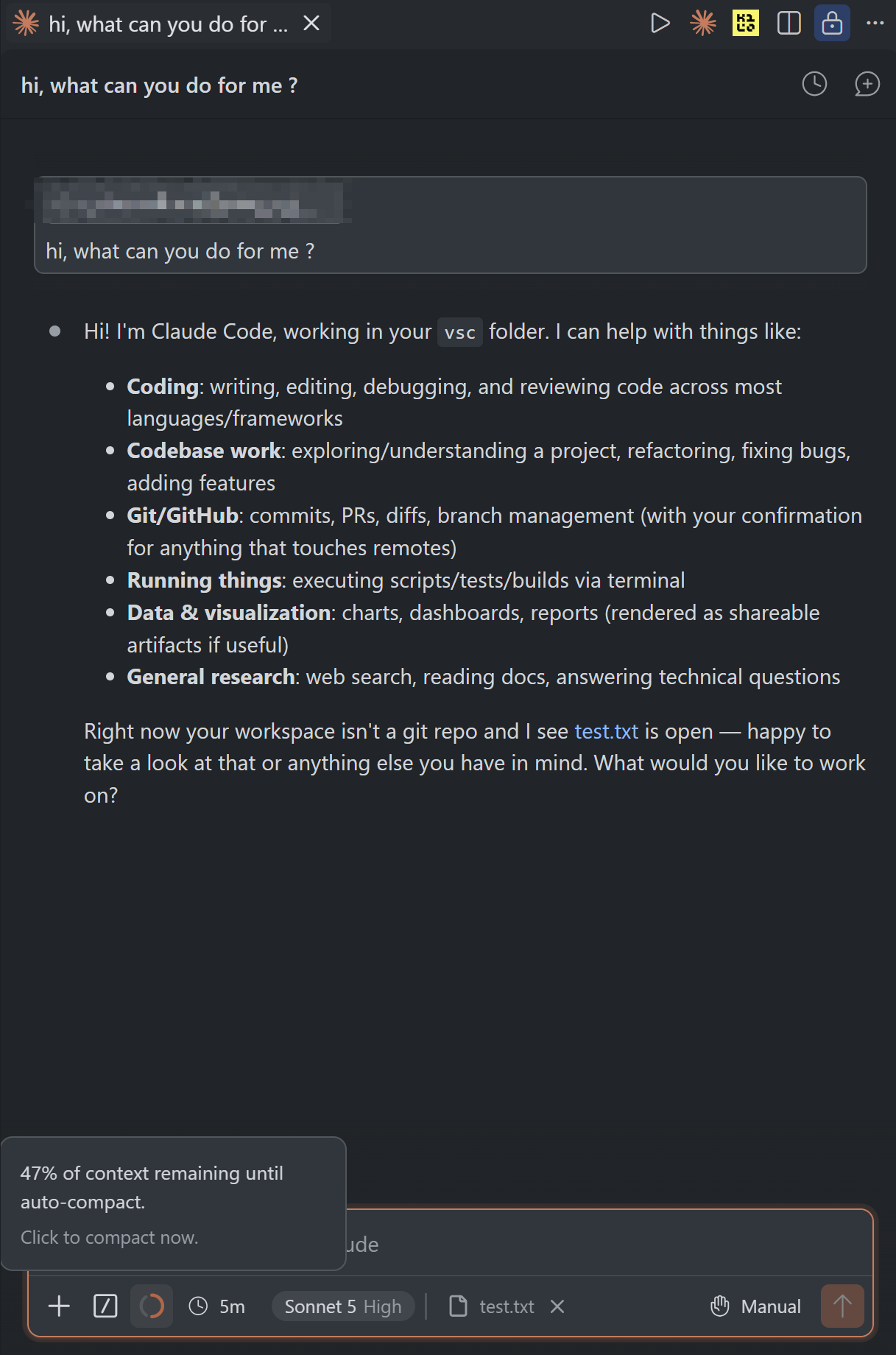
4. 输入测试问题,如果能收到回复,说明配置成功
### 2.2 添加核心配置
在 settings.json 中补充以下完整配置(按需修改模型版本和显示位置):
```jsonc theme={null}
{
"claudeCode.preferredLocation": "panel",
"claudeCode.allowDangerouslySkipPermissions": true,
"claudeCode.selectedModel": "claude-sonnet-5",
"claudeCode.environmentVariables": [
{
"name": "ANTHROPIC_BASE_URL",
"value": "https://api.mixroute.ai"
},
{
"name": "ANTHROPIC_AUTH_TOKEN",
"value": "mixroute_api_key"
},
{
"name": "CLAUDE_CODE_DISABLE_EXPERIMENTAL_BETAS",
"value": "1"
}
]
}
```
## 配置说明
| 配置项 | 说明 |
| - | - |
| `claudeCode.preferredLocation` | 插件显示位置,可选 `panel`(底部面板)或 `sidebar`(侧边栏) |
| `claudeCode.selectedModel` | 默认使用的模型 |
| `ANTHROPIC_BASE_URL` | Mixroute Api 服务地址 |
| `ANTHROPIC_AUTH_TOKEN` | 您的 API 密钥 |
## 验证配置
1. 配置完成后,重启 VS Code
2. 打开命令面板(Ctrl+Shift+P),输入「Claude」
3. 选择「Claude Code: Open Panel」打开插件面板
4. 输入测试问题,如果能收到回复,说明配置成功
 ## 故障排除
* 检查 `ANTHROPIC_BASE_URL` 是否正确设置为 `https://api.mixroute.ai`
* 验证 API 密钥是否有效
* 确认网络连接正常
* 检查账户余额是否充足
* 尝试切换其他模型
* 查看 VS Code 输出面板的错误日志
```text theme={null}
# 错误信息a参考
API Error: 400 Unexpected Value(s) `advisor-tool-2026-03-01` for the `anthropic-beta` header.
# 错误信息b参考
API Error: 400 InvokeModelWithResponseStream: \
operation error bedrock Runtime: InvokeModelWithResponseStream, \
http response error StatusCode: 400 , RequestID: xxx-xxx-xxx-xxx, \
ValidationException: invalid beta flag (request id xxxxxxxx)
```
设置`CLAUDE_CODE_DISABLE_EXPERIMENTAL_BETAS : 1` ,禁用实验性功能,保持兼容在setting.json中添加`{"name":"CLAUDE_CODE_DISABLE_EXPERIMENTAL_BETAS","value":1}`
This documentation is built and hosted on [Mintlify](https://mintlify.com), a developer documentation platform.
## 故障排除
* 检查 `ANTHROPIC_BASE_URL` 是否正确设置为 `https://api.mixroute.ai`
* 验证 API 密钥是否有效
* 确认网络连接正常
* 检查账户余额是否充足
* 尝试切换其他模型
* 查看 VS Code 输出面板的错误日志
```text theme={null}
# 错误信息a参考
API Error: 400 Unexpected Value(s) `advisor-tool-2026-03-01` for the `anthropic-beta` header.
# 错误信息b参考
API Error: 400 InvokeModelWithResponseStream: \
operation error bedrock Runtime: InvokeModelWithResponseStream, \
http response error StatusCode: 400 , RequestID: xxx-xxx-xxx-xxx, \
ValidationException: invalid beta flag (request id xxxxxxxx)
```
设置`CLAUDE_CODE_DISABLE_EXPERIMENTAL_BETAS : 1` ,禁用实验性功能,保持兼容在setting.json中添加`{"name":"CLAUDE_CODE_DISABLE_EXPERIMENTAL_BETAS","value":1}`
This documentation is built and hosted on [Mintlify](https://mintlify.com), a developer documentation platform.