> ## Documentation Index
> Fetch the complete documentation index at: https://docs.mixroute.ai/llms.txt
> Use this file to discover all available pages before exploring further.
# OpenWork
> OpenWork連携ガイド: MixRouteを通じてOpenWorkで複数のAIモデルを使用する
## 1. はじめに
OpenWorkは、75以上のモデルとローカルデプロイに対応したオープンソースのAIコーディングアシスタントです。**MixRoute**を通じて、OpenWorkでGPT、Claude、GLMなど、幅広い主要モデルや最先端モデルを利用でき、カスタムプロバイダーとモデルの設定にも完全に対応しています。
**ダウンロード**:[https://openworklabs.com/](https://openworklabs.com/)
## 2. クイックセットアップ(MixRoute)
### 2.1 APIキーの取得
[Mixroute APIコンソール](https://api.mixroute.ai/)でAPIキーを作成し、コピーします。
### 2.2 OpenWorkでカスタムプロバイダーを設定する
OpenWorkは、JSON設定ファイルによるカスタムプロバイダーの追加をサポートします。グローバルではなくワークスペース単位で設定することをおすすめします。
OpenWorkのワークスペース内で、設定ファイルを作成または編集してください。
`/path-to-your-workspace/.config/opencode/opencode.json`
グローバルな場所`~/.config/opencode/opencode.json`にカスタムプロバイダーを追加することは推奨されません。OpenWorkはワークスペース単位の設定を優先するため、グローバル設定は上書きされ、無視されます。
連携方法に応じて、対応するプロバイダー設定を追加してください。
Chat Completionsに対応するモデルには、`@ai-sdk/openai-compatible`を使用してください。
```json theme={null}
{
"$schema": "https://opencode.ai/config.json",
"disabled_providers": [],
"provider": {
"mixroute-compatible": {
"name": "mixroute-compatible",
"npm": "@ai-sdk/openai-compatible",
"options": {
"baseURL": "https://api.mixroute.ai/v1",
"apiKey": "{env:MIXROUTE_API_KEY}"
},
"models": {
"glm-5.3": {
"name": "glm-5.3"
}
}
}
}
}
```
`@ai-sdk/openai-compatible`を使用すると、Chat Completionsプロトコルに対応する大半のモデルをカバーする、最も幅広い互換性が得られます。
一部のモデルにはResponses APIプロトコルが必要です。これらには`@ai-sdk/openai`を使用してください。
```json theme={null}
{
"mixroute-responses": {
"name": "MixRoute OpenAI Responses",
"npm": "@ai-sdk/openai",
"options": {
"baseURL": "https://api.mixroute.ai/v1",
"apiKey": "{env:MIXROUTE_API_KEY}"
},
"models": {
"gpt-5.6-luna": {
"name": "gpt-5.6-luna"
},
"gpt-5.6-terra": {
"name": "gpt-5.6-terra"
},
"gpt-5.6-sol": {
"name": "gpt-5.6-sol"
}
}
}
}
```
Responses APIが必要なモデルについては、[セクション3](#3-responses-api-required-for-some-models-important)を参照してください。
Claudeモデルは`@ai-sdk/anthropic`経由で接続します。
```json theme={null}
{
"mixroute-messages": {
"name": "MixRoute Anthropic messages",
"npm": "@ai-sdk/anthropic",
"options": {
"baseURL": "https://api.mixroute.ai/v1",
"apiKey": "{env:MIXROUTE_API_KEY}"
},
"models": {
"claude-sonnet-5": {
"name": "claude-sonnet-5"
}
}
}
}
```
設定ファイルを保存し、OpenWorkを再起動してください。設定したプロバイダーとモデルがモデル選択リストに表示されます。
**完全な設定例**(すべてのプロバイダーを統合):
```json theme={null}
{
"$schema": "https://opencode.ai/config.json",
"disabled_providers": [],
"provider": {
"mixroute-responses": {
"name": "MixRoute OpenAI Responses",
"npm": "@ai-sdk/openai",
"options": {
"baseURL": "https://api.mixroute.ai/v1",
"apiKey": "{env:MIXROUTE_API_KEY}"
},
"models": {
"gpt-5.6-luna": {
"name": "gpt-5.6-luna"
},
"gpt-5.6-terra": {
"name": "gpt-5.6-terra"
},
"gpt-5.6-sol": {
"name": "gpt-5.6-sol"
}
}
},
"mixroute-messages": {
"name": "MixRoute Anthropic messages",
"npm": "@ai-sdk/anthropic",
"options": {
"baseURL": "https://api.mixroute.ai/v1",
"apiKey": "{env:MIXROUTE_API_KEY}"
},
"models": {
"claude-sonnet-5": {
"name": "claude-sonnet-5"
}
}
},
"mixroute-compatible": {
"name": "mixroute-compatible",
"npm": "@ai-sdk/openai-compatible",
"options": {
"baseURL": "https://api.mixroute.ai/v1",
"apiKey": "{env:MIXROUTE_API_KEY}"
},
"models": {
"glm-5.3": {
"name": "glm-5.3"
}
}
}
}
}
```
### 2.3 モデルの切り替え
設定が完了すると、会話画面または設定からプロバイダーとモデル(例:`mixroute-responses/gpt-5.6-luna`)を選択できます。
* APIキーを設定ファイルに平文で記述するのではなく、`MIXROUTE_API_KEY`環境変数を通じて渡すことを推奨します。
* セルフホストまたは別のサービスを使用する場合は、**base URL**を対応するアドレス(例:`http://your-server:3003/v1`)に変更してください。
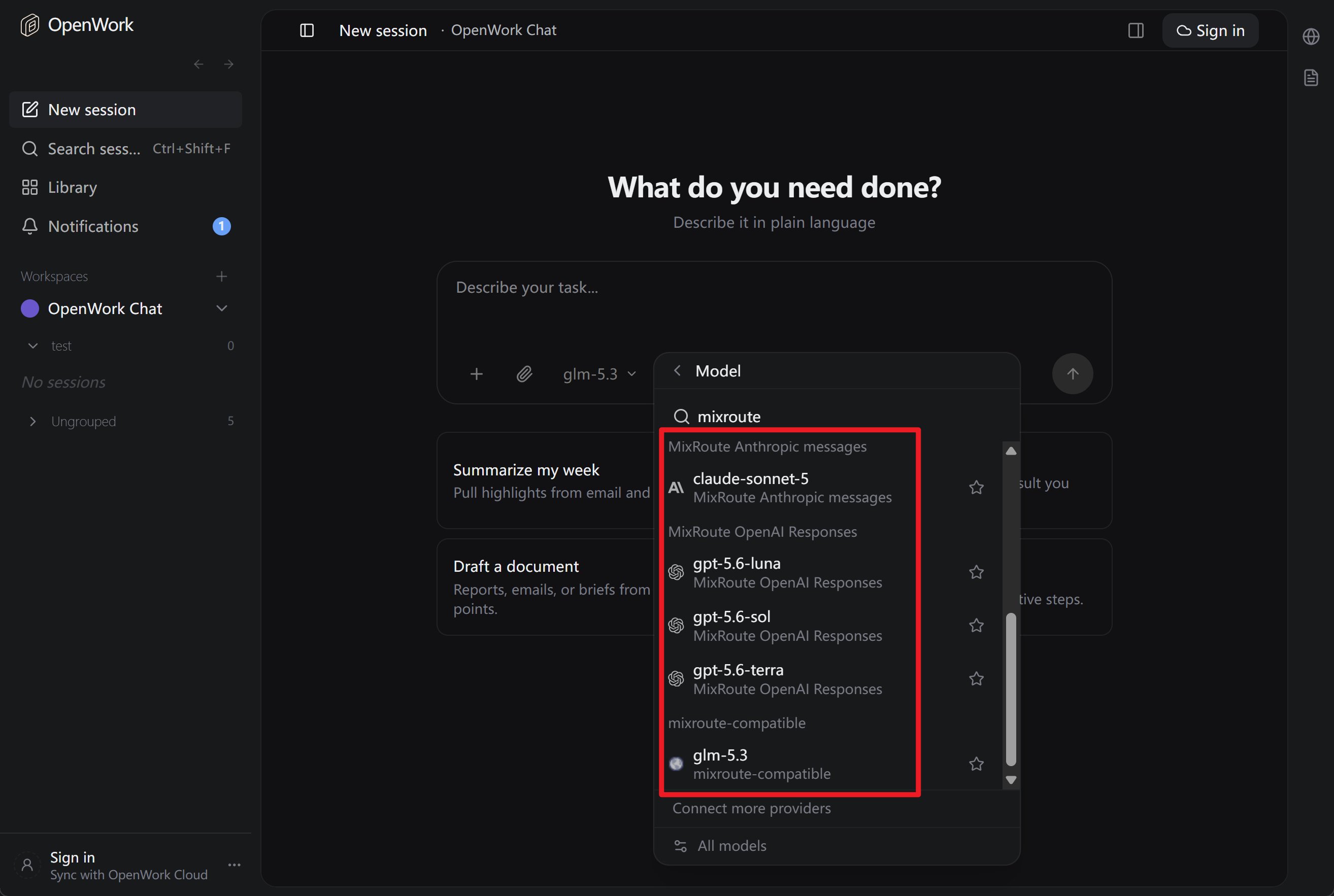 ### 2.4 OpenWorkを起動して会話を開始
設定後にOpenWorkを起動すると、モデル選択リストに追加したモデルが表示されます。
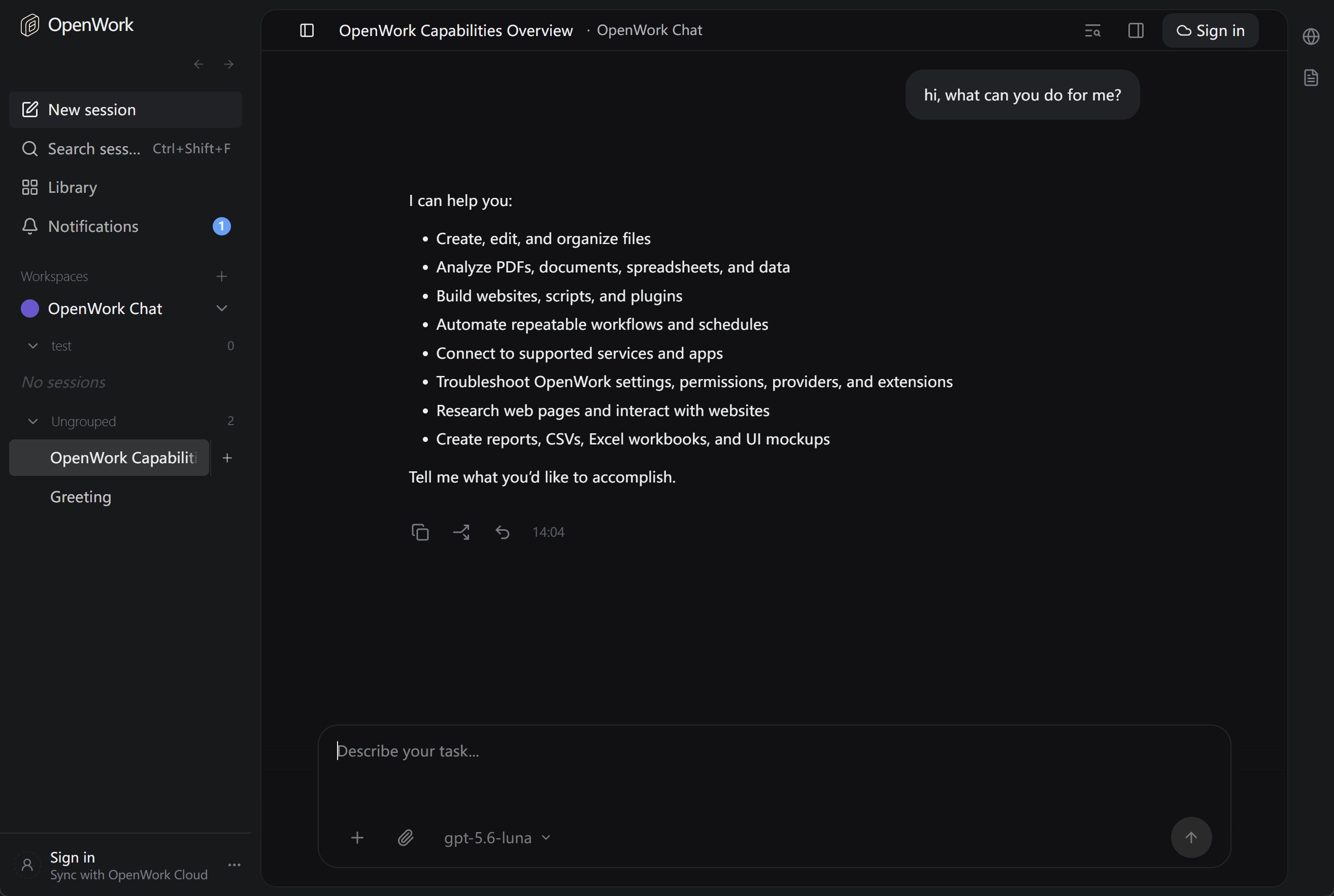
### 2.4 OpenWorkを起動して会話を開始
設定後にOpenWorkを起動すると、モデル選択リストに追加したモデルが表示されます。
 ## 3. 一部のモデルにはResponses APIが必要(重要)
一部のモデルは、標準のChat Completionsとは異なるAPIインターフェースを使用し、**Responses API**を必要とします。OpenWorkでそのようなモデルを選択した際に、次のようなエラーが発生する場合:
> 指定されたモデルではchatCompletion操作を使用できません。別のモデルを選択して、もう一度お試しください。
これは、リクエストが**Chat Completions**経由で送信されている一方、サーバー側のモデルは**Responses API**のみをサポートしていることを意味します。正しいインターフェースを使用するように設定する必要があります。
### 3.1 Responses APIが必要なモデル(代表例)
| モデルID / シリーズ | 説明 |
| - | - |
| **gpt-5.6-luna** | GPT-5.6 Luna、Responses APIのみ |
| **gpt-5.6-terra** | GPT-5.6 Terra、Responses APIのみ |
| **gpt-5.6-sol** | GPT-5.6 Sol、Responses APIのみ |
### 3.2 OpenWorkでの設定方法
**設定ファイルに`@ai-sdk/openai`を使って別のプロバイダーを追加**し、OpenWorkがこれらのモデルに**Responses API**を使用するようにします。
具体的な設定については、[ステップ2のResponses APIの節](#responses-api-gpt-5x-codex-and-similar-models)を参照してください。`opencode.json`ファイルに`mixroute-responses`プロバイダーを追加します。
### 3.3 まとめ
| シナリオ | 方法 |
| - | - |
| **gpt-5.6-luna / gpt-5.6-terra / gpt-5.6-sol**(Responsesモデル)を使用 | `opencode.json`に、Responses APIを使用する別のプロバイダーを追加します。 |
| **glm-5.3、claude-sonnet-5**を使用(標準モデル) | 通常どおり`@ai-sdk/openai-compatible`または`@ai-sdk/anthropic`を使用 |
## 4. 参考リンク
* OpenWorkのウェブサイトとダウンロード: [https://openworklabs.com/](https://openworklabs.com/)
* OpenCodeの設定とモデル:[モデル](https://opencode.ai/docs/models)、[プロバイダー](https://opencode.ai/docs/providers)
* MixRouteコンソール: [https://api.mixroute.ai/](https://api.mixroute.ai/)
This documentation is built and hosted on [Mintlify](https://mintlify.com), a developer documentation platform.
## 3. 一部のモデルにはResponses APIが必要(重要)
一部のモデルは、標準のChat Completionsとは異なるAPIインターフェースを使用し、**Responses API**を必要とします。OpenWorkでそのようなモデルを選択した際に、次のようなエラーが発生する場合:
> 指定されたモデルではchatCompletion操作を使用できません。別のモデルを選択して、もう一度お試しください。
これは、リクエストが**Chat Completions**経由で送信されている一方、サーバー側のモデルは**Responses API**のみをサポートしていることを意味します。正しいインターフェースを使用するように設定する必要があります。
### 3.1 Responses APIが必要なモデル(代表例)
| モデルID / シリーズ | 説明 |
| - | - |
| **gpt-5.6-luna** | GPT-5.6 Luna、Responses APIのみ |
| **gpt-5.6-terra** | GPT-5.6 Terra、Responses APIのみ |
| **gpt-5.6-sol** | GPT-5.6 Sol、Responses APIのみ |
### 3.2 OpenWorkでの設定方法
**設定ファイルに`@ai-sdk/openai`を使って別のプロバイダーを追加**し、OpenWorkがこれらのモデルに**Responses API**を使用するようにします。
具体的な設定については、[ステップ2のResponses APIの節](#responses-api-gpt-5x-codex-and-similar-models)を参照してください。`opencode.json`ファイルに`mixroute-responses`プロバイダーを追加します。
### 3.3 まとめ
| シナリオ | 方法 |
| - | - |
| **gpt-5.6-luna / gpt-5.6-terra / gpt-5.6-sol**(Responsesモデル)を使用 | `opencode.json`に、Responses APIを使用する別のプロバイダーを追加します。 |
| **glm-5.3、claude-sonnet-5**を使用(標準モデル) | 通常どおり`@ai-sdk/openai-compatible`または`@ai-sdk/anthropic`を使用 |
## 4. 参考リンク
* OpenWorkのウェブサイトとダウンロード: [https://openworklabs.com/](https://openworklabs.com/)
* OpenCodeの設定とモデル:[モデル](https://opencode.ai/docs/models)、[プロバイダー](https://opencode.ai/docs/providers)
* MixRouteコンソール: [https://api.mixroute.ai/](https://api.mixroute.ai/)
This documentation is built and hosted on [Mintlify](https://mintlify.com), a developer documentation platform.