> ## Documentation Index
> Fetch the complete documentation index at: https://docs.mixroute.ai/llms.txt
> Use this file to discover all available pages before exploring further.
# Dify
> Dify Platform Integration Guide
## Introduction
Dify is a visual AI application building platform. With **MixRoute API** , you can use cost-effective LLM services in Dify.
## Integration Steps
### Step 1: Prepare API Account
Register at [https://api.mixroute.ai/,Check](https://api.mixroute.ai/,Check) out [Quick Start](/zh-hant/quickstart).
### Step 2: Open Dify Model Provider Settings
1. Open Dify platform, go to Settings
2. Select "Model Providers" in left menu
 ### Step 3: Install Compatible Plugin
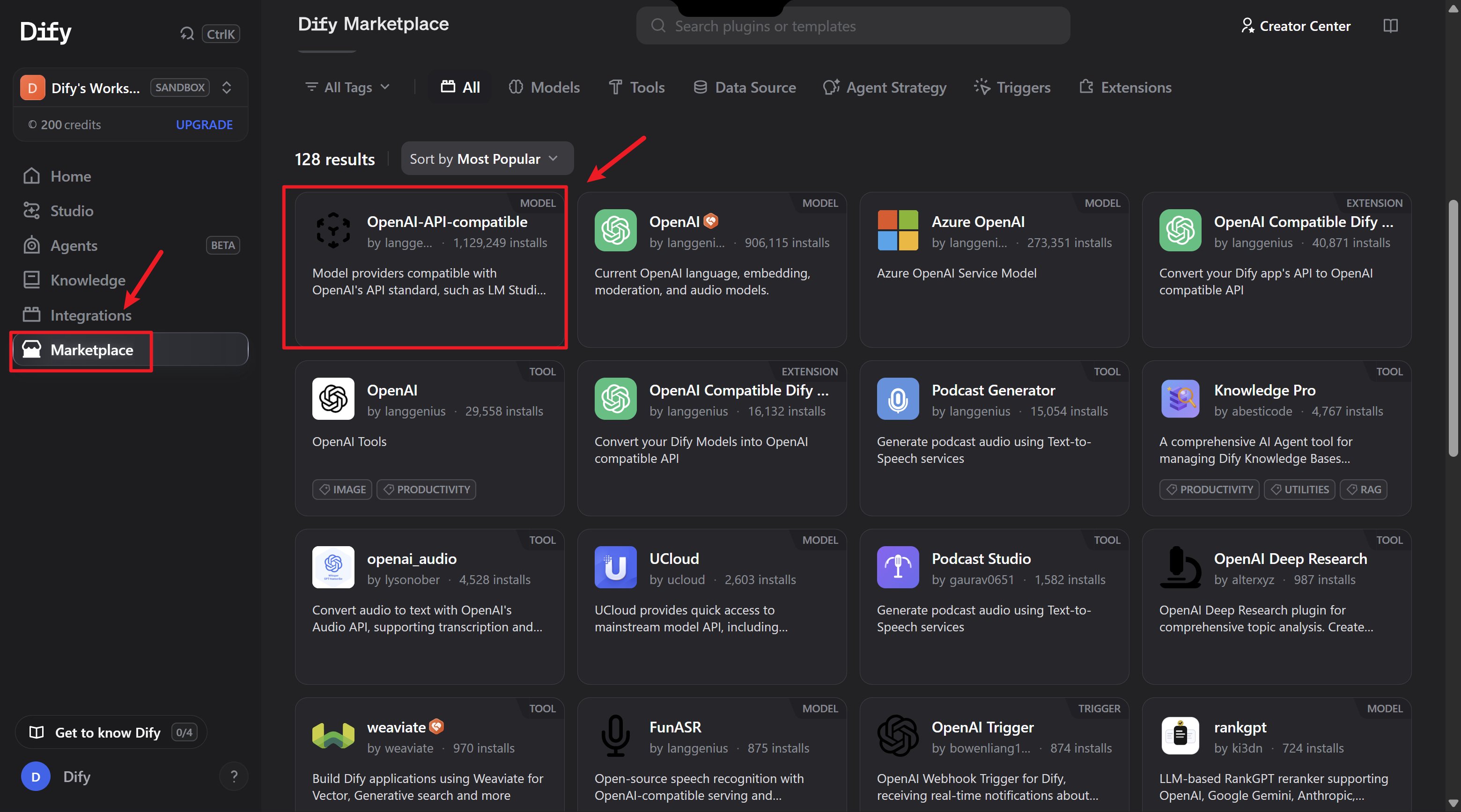
1. Find "OpenAI-API-compatible" plugin
2. Click Install
### Step 3: Install Compatible Plugin
1. Find "OpenAI-API-compatible" plugin
2. Click Install
 ### Step 4: Configure Parameters
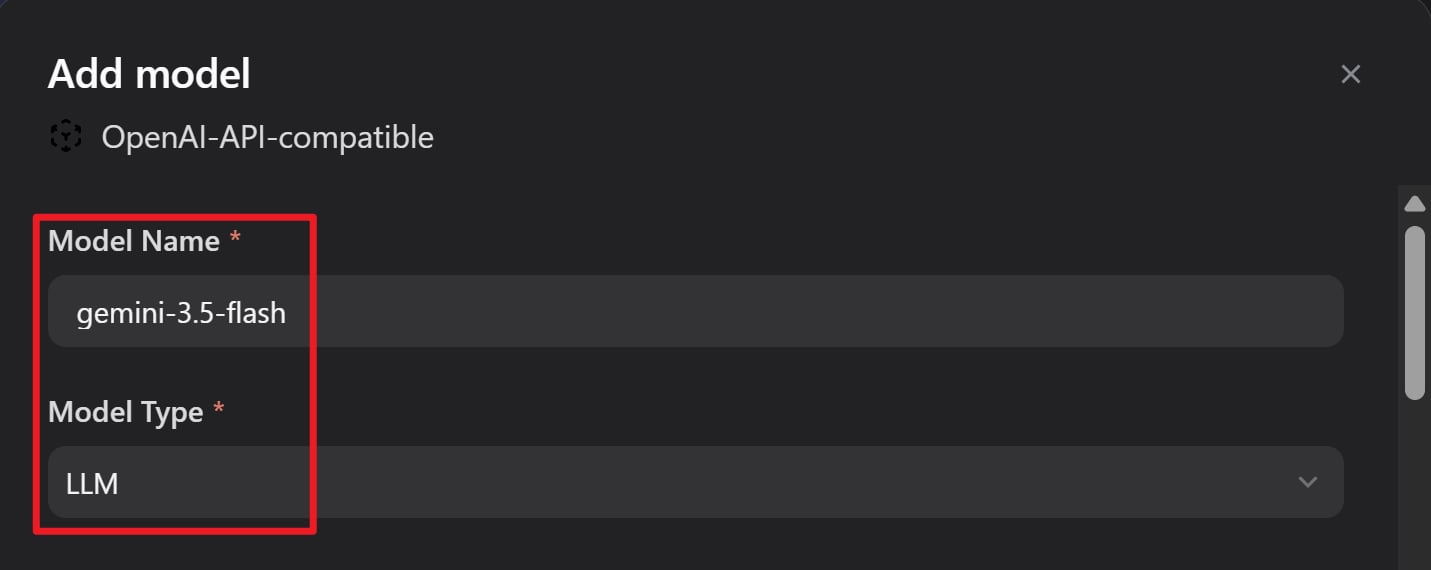
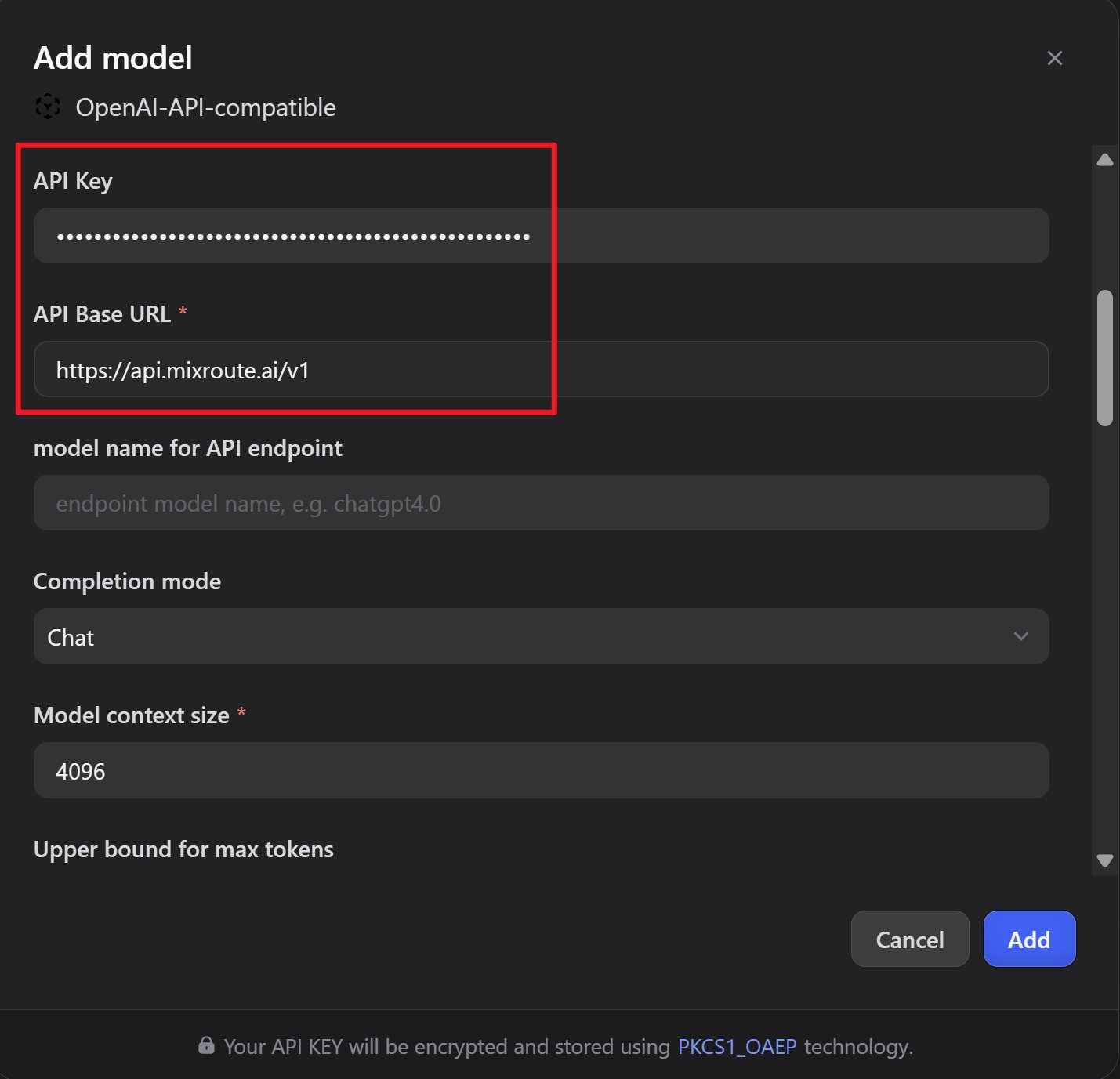
Click "Add Model" and configure:
| Setting | Value |
| - | - |
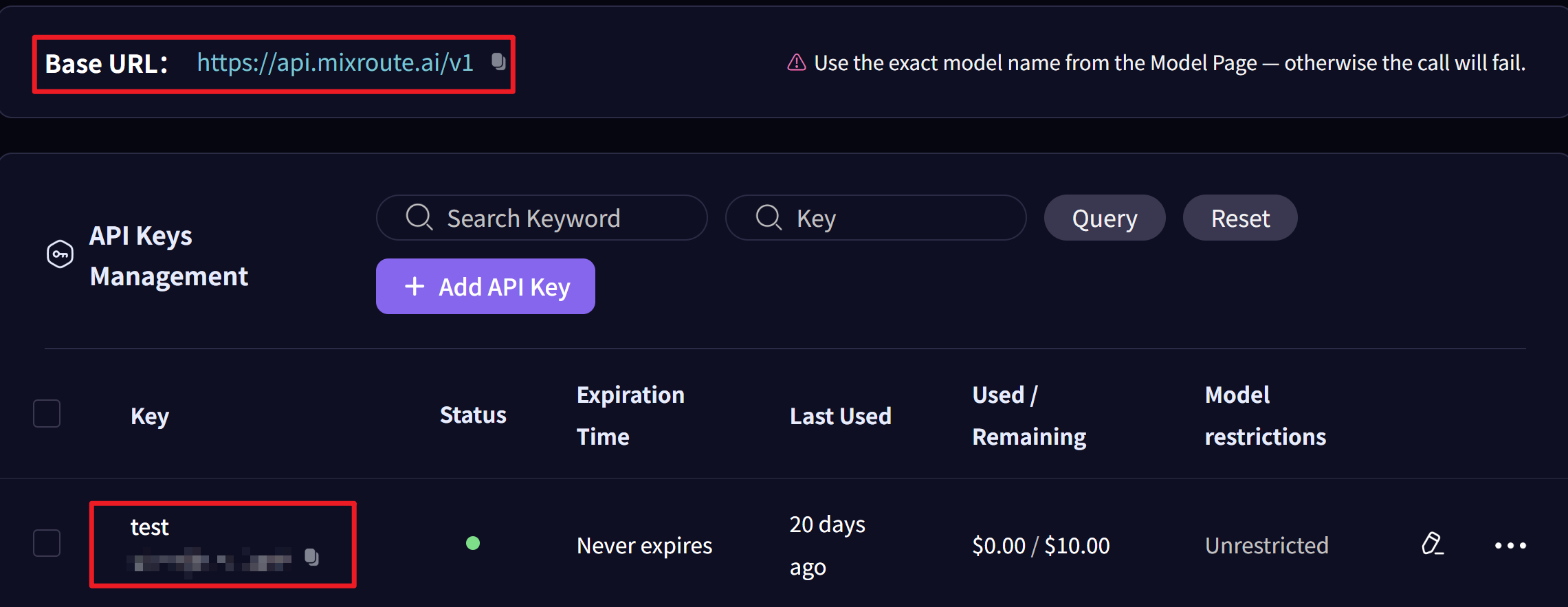
| API Key | From Mixroute Api console |
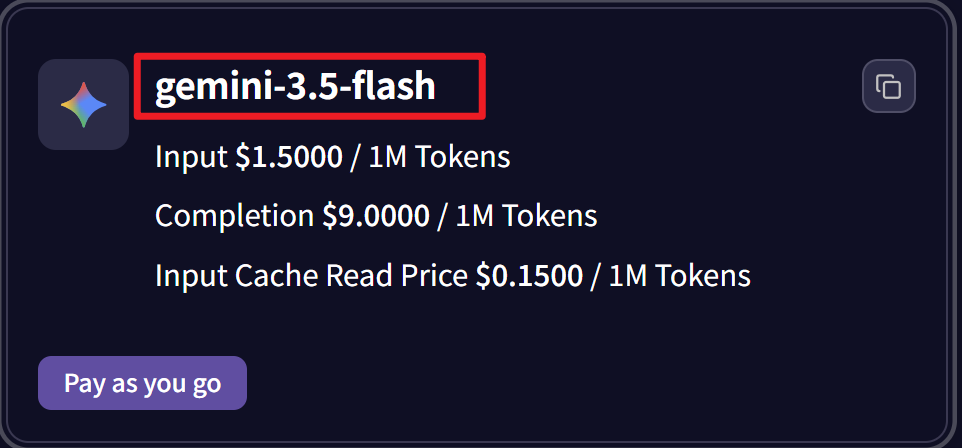
| Model Name | e.g., `gpt-5.5`, `gemini-3.5-flash` |
| API Endpoint | `https://api.mixroute.ai/v1` |
### Step 4: Configure Parameters
Click "Add Model" and configure:
| Setting | Value |
| - | - |
| API Key | From Mixroute Api console |
| Model Name | e.g., `gpt-5.5`, `gemini-3.5-flash` |
| API Endpoint | `https://api.mixroute.ai/v1` |
 Ensure "Model Name" and "Model Name in API endpoint" fields match!
 ### Step 5: Save Configuration
Click "Save" to complete the setup.
### Step 6: Test the Integration
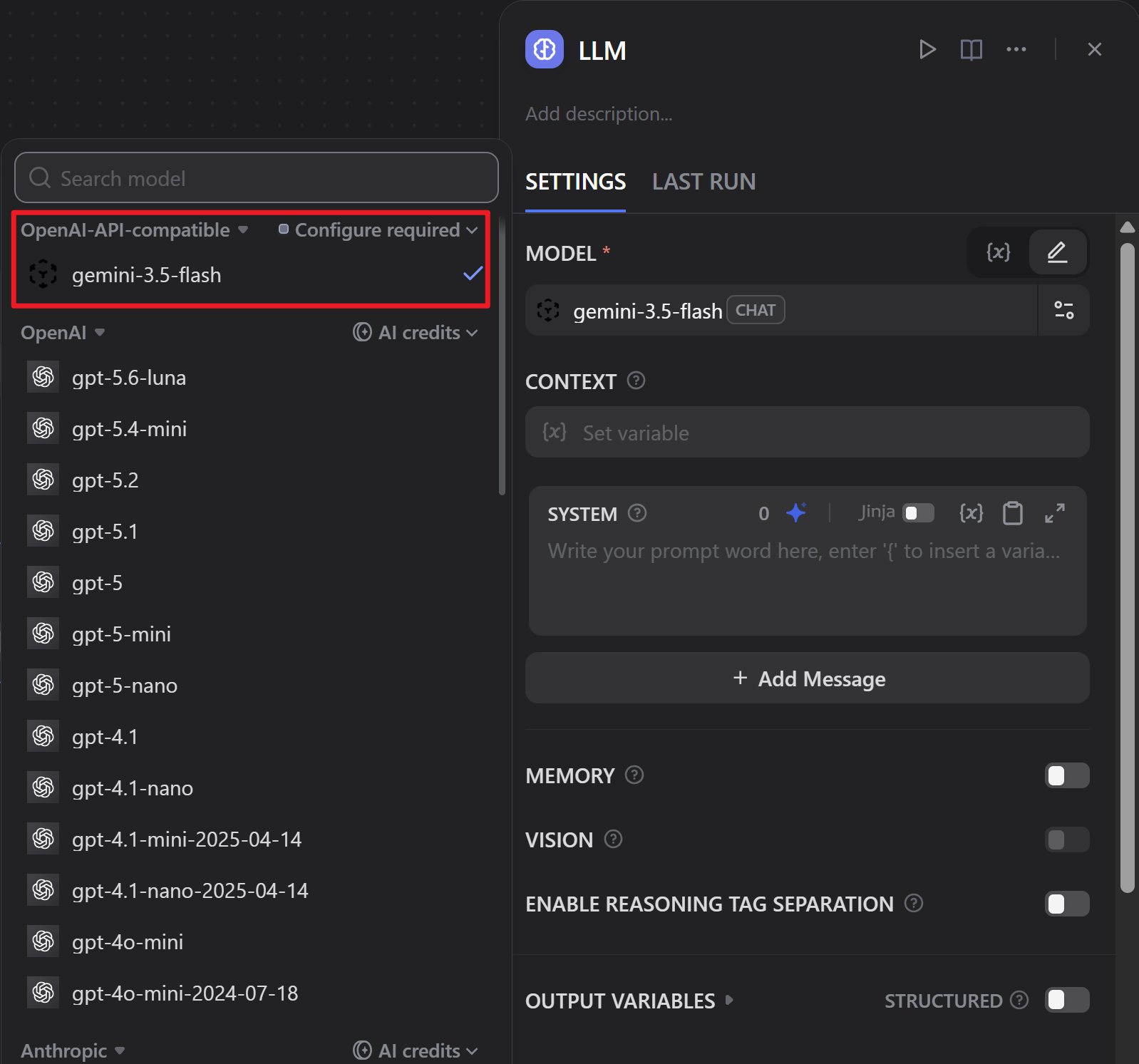
1. Create a new workflow or chatbot
2. Select the model you just configured
3. Run a test to verify everything works
### Step 5: Save Configuration
Click "Save" to complete the setup.
### Step 6: Test the Integration
1. Create a new workflow or chatbot
2. Select the model you just configured
3. Run a test to verify everything works
 ## Advantages
Competitive pricing
Same response quality
Simple plugin setup
Chat, embeddings, speech-to-text
This documentation is built and hosted on [Mintlify](https://mintlify.com), a developer documentation platform.
## Advantages
Competitive pricing
Same response quality
Simple plugin setup
Chat, embeddings, speech-to-text
This documentation is built and hosted on [Mintlify](https://mintlify.com), a developer documentation platform.