> ## Documentation Index
> Fetch the complete documentation index at: https://docs.mixroute.ai/llms.txt
> Use this file to discover all available pages before exploring further.
# n8n
> n8n workflow integration with MixRoute API
## About n8n
n8n is an open-source workflow automation tool that helps users automate tasks by connecting different applications and services. It supports low-code/no-code workflows, allowing you to build complex automation flows by drag-and-drop without writing much code. n8n provides a flexible platform for customizing and extending workflows to meet various automation needs.
By connecting **MixRoute API**, you can use mainstream models like GPT, Gemini, and Claude in n8n to build intelligent automation workflows.
Use **OpenAI Account** credentials for configuration. GPT, Gemini, Claude, and other models are all set up in the OpenAI account settings.
## Prerequisites
* A valid MixRoute API Key (create at [console](https://api.mixroute.ai/))
* MixRoute API URL: `https://api.mixroute.ai/v1`
## Setup Steps
### Step 1: Create or Edit OpenAI Credentials
1. In n8n, click **Settings** (gear icon) or open workflow editor
2. Go to **Credentials** → **Add Credential**
3. Search and select **OpenAI**
4. You can also edit an existing OpenAI credential
### Step 2: Enter MixRoute API Parameters
In the OpenAI credential configuration:
| Parameter | Value |
| --------------------------- | ------------------------------------------------------------------------- |
| **API Key** | Your API key from [MixRoute Console](https://api.mixroute.ai/) → API Keys |
| **Base URL** (if available) | `https://api.mixroute.ai/v1` |
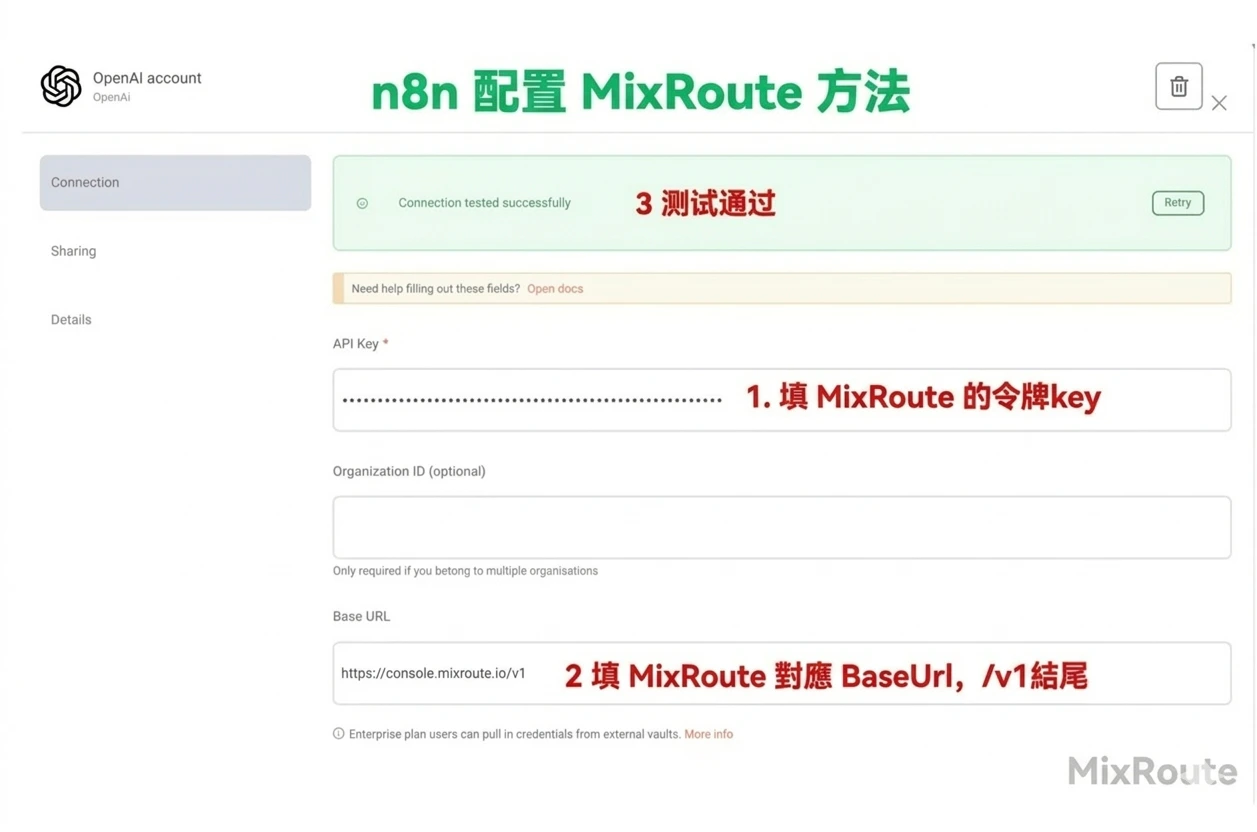 Base URL must include the `/v1` suffix. In some n8n versions, Base URL may be under "Additional Fields" or "Options" in credentials.
### Step 3: Select Model
1. Add **OpenAI** or **Chat OpenAI** node to your workflow
2. Select the MixRoute credential you configured
3. Choose or enter a model ID in **Model**, e.g.:
* `gpt-5.5`
* `gemini-3.5-flash`
* `claude-opus-4-8`
* See [Model List](https://console.mixroute.ai/models) for more
### Step 4: Test Workflow
Save and run the workflow. If it returns a valid response, the connection is successful.
## Key Settings
* **API Key**: From MixRoute console, do not use official OpenAI API key
* **Base URL**: Must be `https://api.mixroute.ai/v1`
* **Model ID**: Must match the model names exposed by MixRoute; see [Model Center](https://console.mixroute.ai/models)
## Troubleshooting
* **Connection failed**: Verify Base URL is correct and includes `/v1`
* **Model not found**: Ensure model ID matches MixRoute model center
* **Authentication failed**: Check that API Key is valid and copied completely
Base URL must include the `/v1` suffix. In some n8n versions, Base URL may be under "Additional Fields" or "Options" in credentials.
### Step 3: Select Model
1. Add **OpenAI** or **Chat OpenAI** node to your workflow
2. Select the MixRoute credential you configured
3. Choose or enter a model ID in **Model**, e.g.:
* `gpt-5.5`
* `gemini-3.5-flash`
* `claude-opus-4-8`
* See [Model List](https://console.mixroute.ai/models) for more
### Step 4: Test Workflow
Save and run the workflow. If it returns a valid response, the connection is successful.
## Key Settings
* **API Key**: From MixRoute console, do not use official OpenAI API key
* **Base URL**: Must be `https://api.mixroute.ai/v1`
* **Model ID**: Must match the model names exposed by MixRoute; see [Model Center](https://console.mixroute.ai/models)
## Troubleshooting
* **Connection failed**: Verify Base URL is correct and includes `/v1`
* **Model not found**: Ensure model ID matches MixRoute model center
* **Authentication failed**: Check that API Key is valid and copied completely