> ## Documentation Index
> Fetch the complete documentation index at: https://docs.mixroute.ai/llms.txt
> Use this file to discover all available pages before exploring further.

# Dify

> Dify Platform Integration Guide

## Introduction

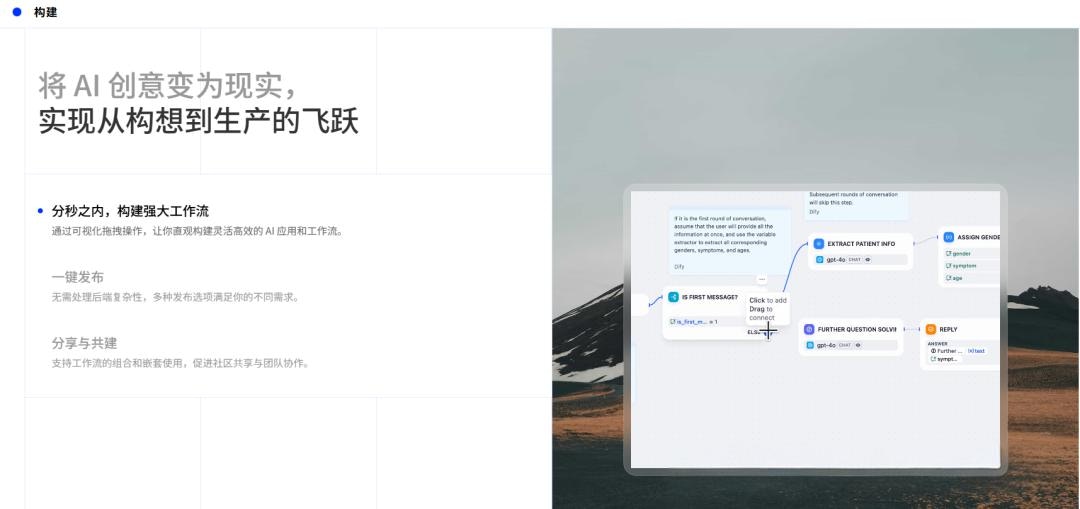
Dify is a visual AI application building platform. With **MixRoute API** , you can use cost-effective LLM services in Dify.

## Integration Steps

### Step 1: Prepare API Account

Register at [https://api.mixroute.ai/，Check](https://api.mixroute.ai/，Check) out [Quick Start](/zh-hant/quickstart).

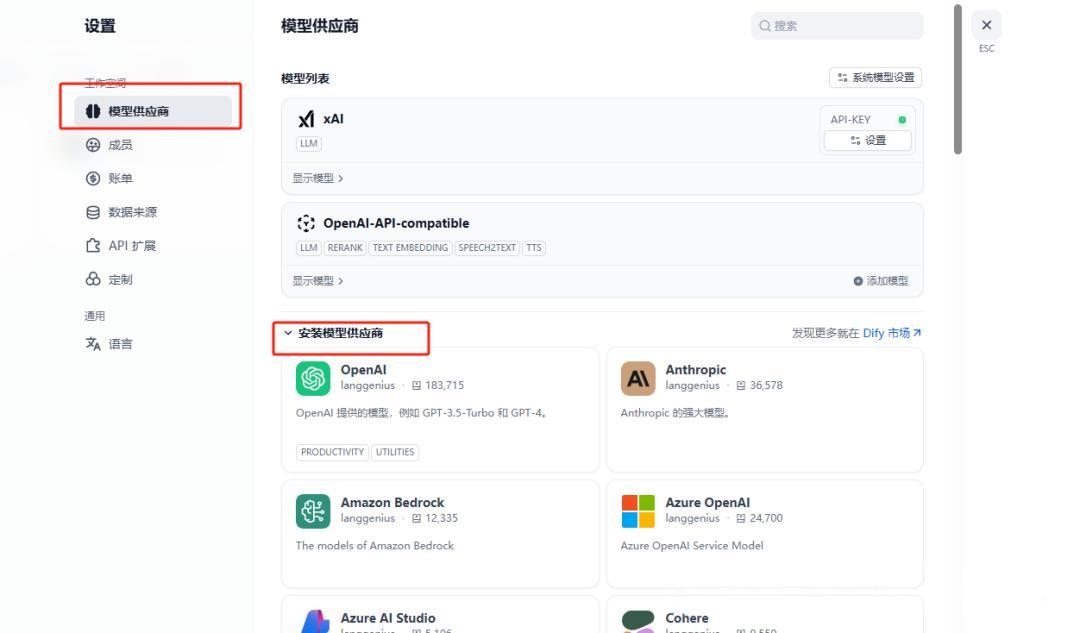
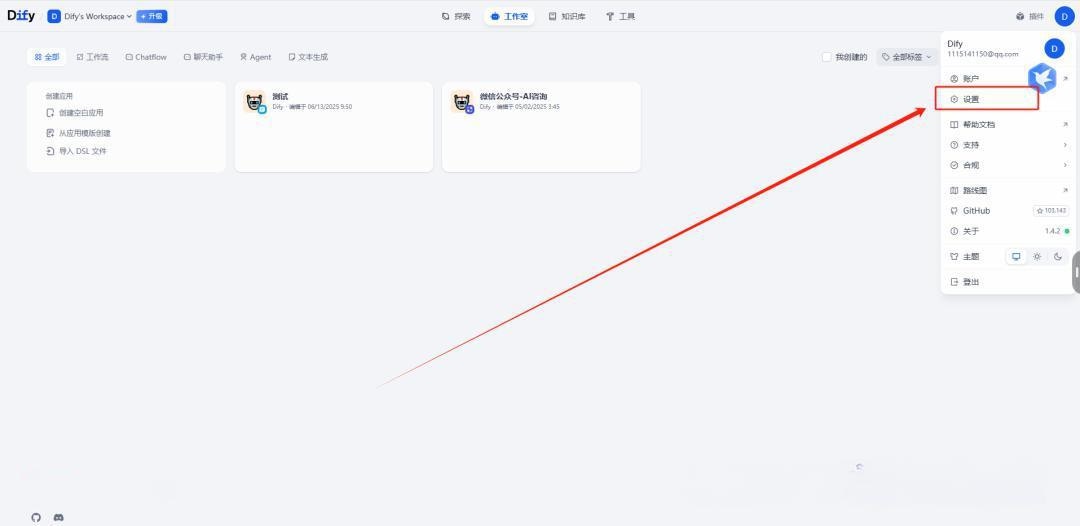
### Step 2: Open Dify Model Provider Settings

1. Open Dify platform, go to Settings
2. Select "Model Providers" in left menu
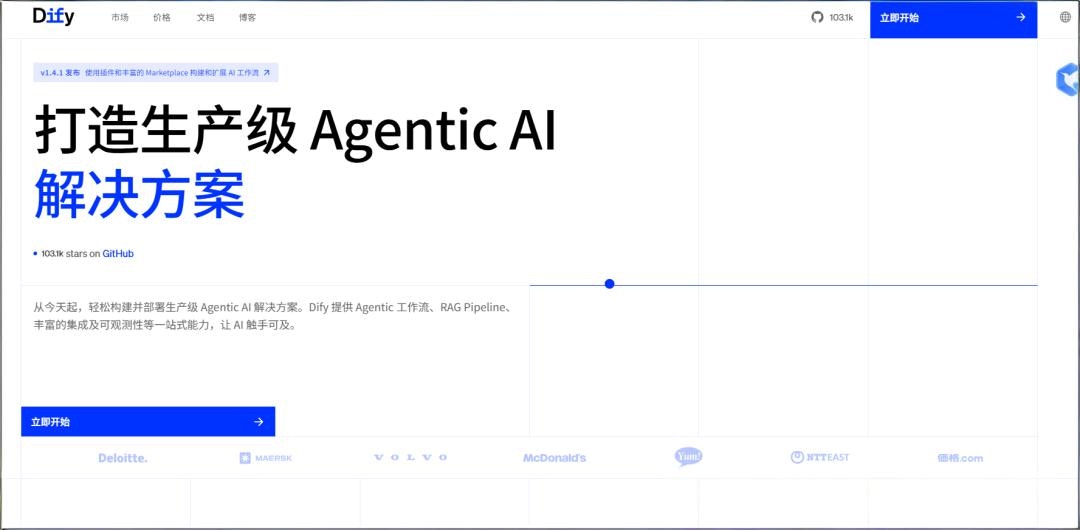
<Frame>
  <img src="https://mintcdn.com/personal-a5418d9f/FONY9Ku9mRTX58KD/images/integrations/dify-1-cn.jpeg?fit=max&auto=format&n=FONY9Ku9mRTX58KD&q=85&s=c5368ca1fc77dd026ab1307a5b988f35" alt="Dify Settings" width="1080" height="530" data-path="images/integrations/dify-1-cn.jpeg" />
</Frame>

<Frame>
  <img src="https://mintcdn.com/personal-a5418d9f/FONY9Ku9mRTX58KD/images/integrations/dify-2-cn.jpeg?fit=max&auto=format&n=FONY9Ku9mRTX58KD&q=85&s=2c60d71f9dc8f28587a98114359d79cd" alt="Model Provider Settings" width="1080" height="509" data-path="images/integrations/dify-2-cn.jpeg" />
</Frame>

### Step 3: Install Compatible Plugin

1. Find "OpenAI-API-compatible" plugin
2. Click Install
<Frame>
  <img src="https://mintcdn.com/personal-a5418d9f/FONY9Ku9mRTX58KD/images/integrations/dify-3-cn.png?fit=max&auto=format&n=FONY9Ku9mRTX58KD&q=85&s=d71ab882a5c484accc390a3333203449" alt="Find Compatible Plugin" width="3578" height="1980" data-path="images/integrations/dify-3-cn.png" />
</Frame>

<Frame>
  <img src="https://mintcdn.com/personal-a5418d9f/FONY9Ku9mRTX58KD/images/integrations/dify-4-cn.png?fit=max&auto=format&n=FONY9Ku9mRTX58KD&q=85&s=aaef0f64533a125d04a0a811bb0a8d71" alt="Install Plugin" width="3576" height="1684" data-path="images/integrations/dify-4-cn.png" />
</Frame>

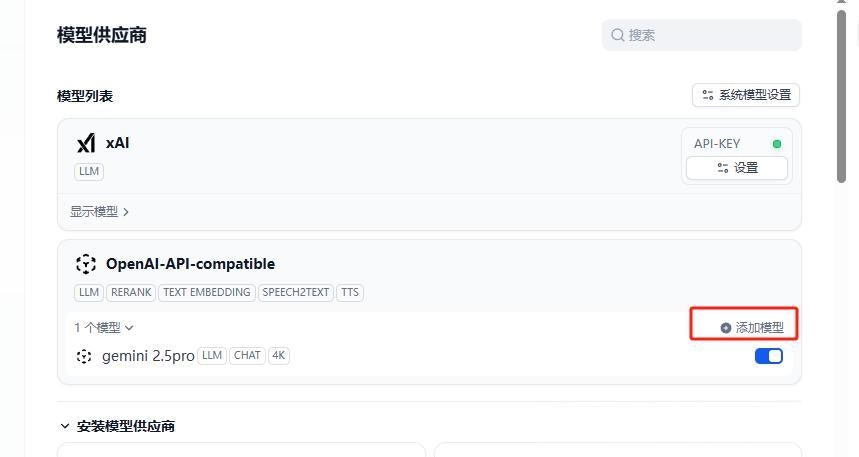
### Step 4: Configure Parameters

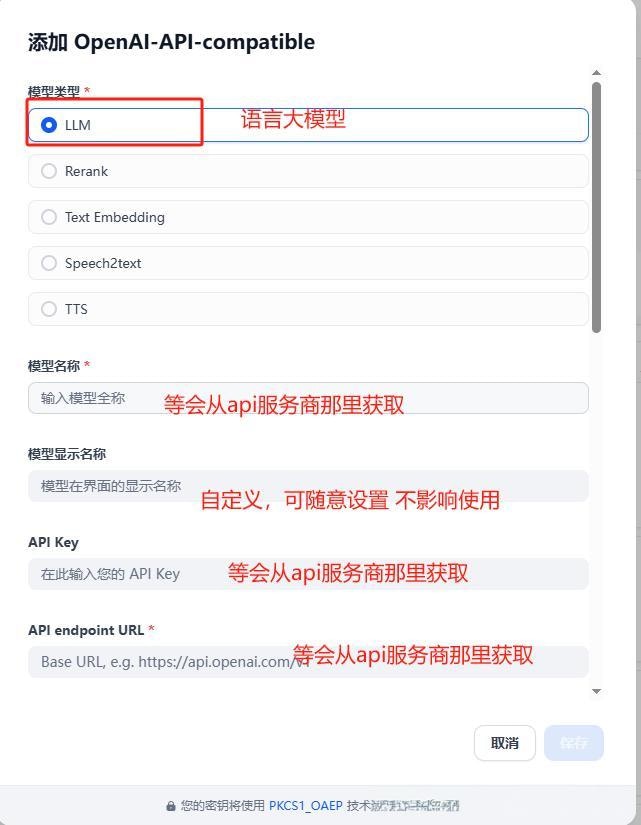
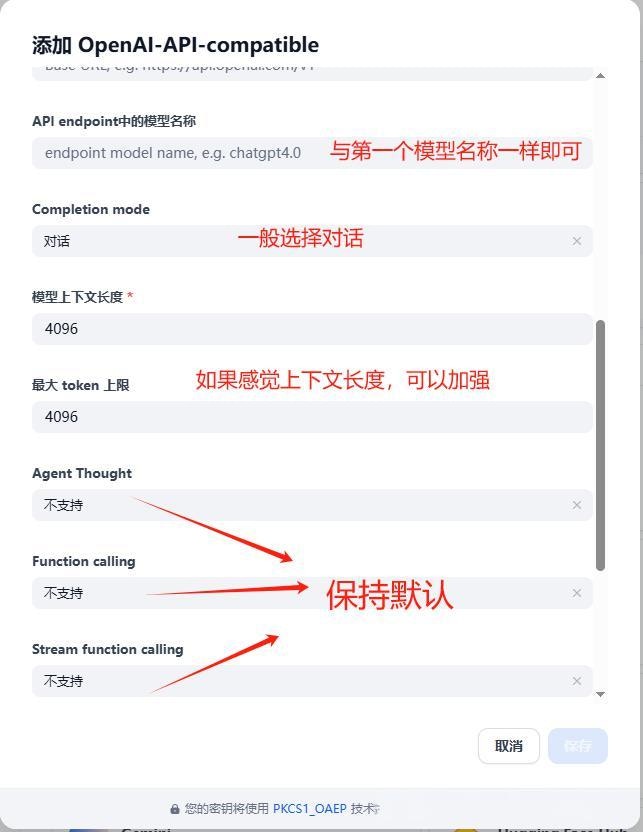
Click "Add Model" and configure:

| Setting      | Value                               |
| ------------ | ----------------------------------- |
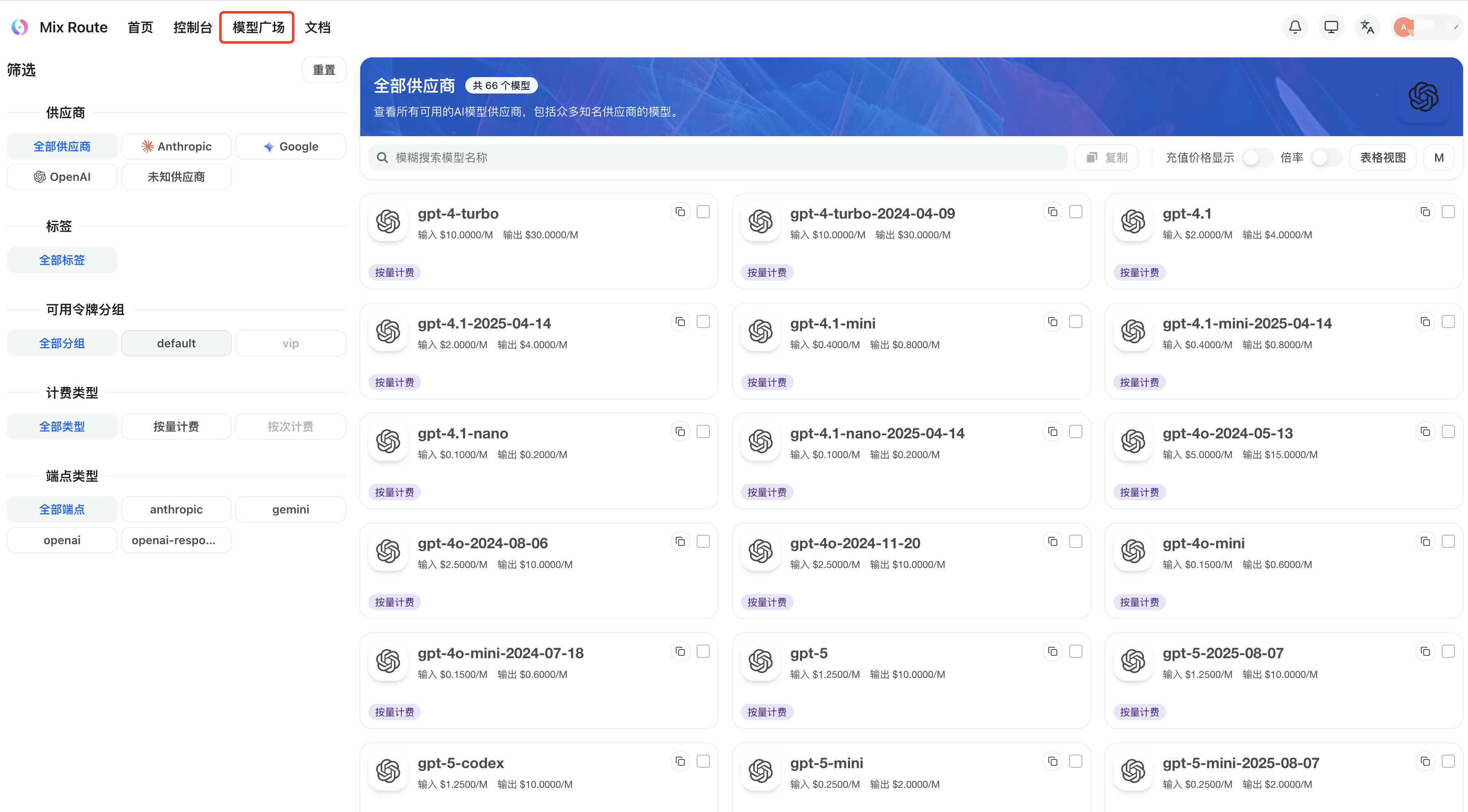
| API Key      | From Mixroute Api console           |
| Model Name   | e.g., `gpt-5.5`, `gemini-3.5-flash` |
| API Endpoint | `https://api.mixroute.ai/v1`        |
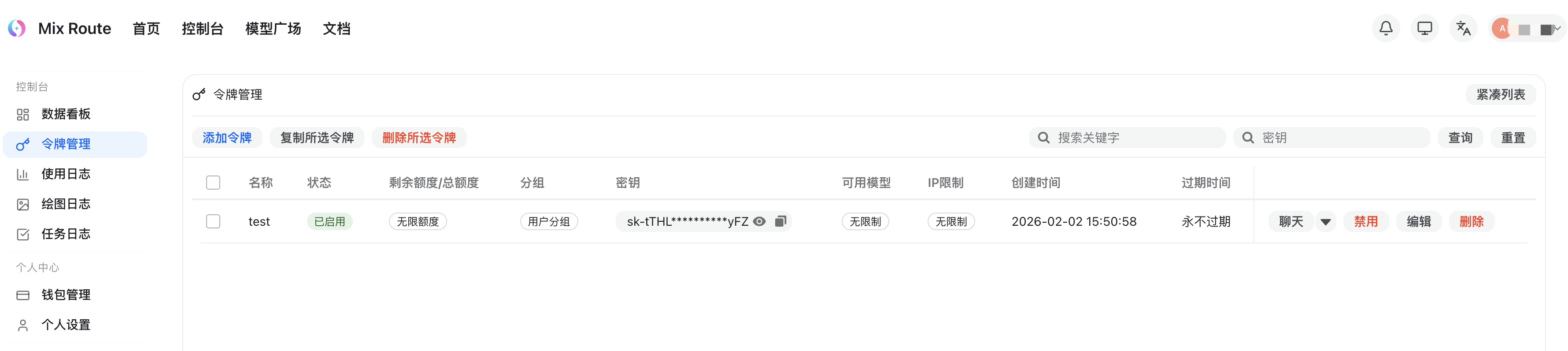
<Frame>
  <img src="https://mintcdn.com/personal-a5418d9f/FONY9Ku9mRTX58KD/images/integrations/dify-5-cn.png?fit=max&auto=format&n=FONY9Ku9mRTX58KD&q=85&s=f8b8a0be84504441df923a38a21b65c2" alt="Get API Key" width="3560" height="796" data-path="images/integrations/dify-5-cn.png" />
</Frame>

<Warning>
  Ensure "Model Name" and "Model Name in API endpoint" fields match!
</Warning>

<Frame>
  <img src="https://mintcdn.com/personal-a5418d9f/FONY9Ku9mRTX58KD/images/integrations/dify-6-cn.jpeg?fit=max&auto=format&n=FONY9Ku9mRTX58KD&q=85&s=82cc25f07d8338e29f3c1197cf762bc7" alt="Model Name Config" width="1080" height="526" data-path="images/integrations/dify-6-cn.jpeg" />
</Frame>

<Frame>
  <img src="https://mintcdn.com/personal-a5418d9f/FONY9Ku9mRTX58KD/images/integrations/dify-7-cn.jpeg?fit=max&auto=format&n=FONY9Ku9mRTX58KD&q=85&s=0c41625ac268b4aeec224d9973fcb425" alt="Fill Model Name" width="1080" height="633" data-path="images/integrations/dify-7-cn.jpeg" />
</Frame>

<Frame>
  <img src="https://mintcdn.com/personal-a5418d9f/FONY9Ku9mRTX58KD/images/integrations/dify-8-cn.jpeg?fit=max&auto=format&n=FONY9Ku9mRTX58KD&q=85&s=9f28de2a779c5b04a253c63ce91e2c9b" alt="Fill API Address" width="859" height="457" data-path="images/integrations/dify-8-cn.jpeg" />
</Frame>

### Step 5: Save Configuration

Click "Save" to complete the setup.
<Frame>
  <img src="https://mintcdn.com/personal-a5418d9f/FONY9Ku9mRTX58KD/images/integrations/dify-9-cn.jpeg?fit=max&auto=format&n=FONY9Ku9mRTX58KD&q=85&s=ecf66de0f66a938a45362238f6b053b3" alt="Save Configuration" width="641" height="825" data-path="images/integrations/dify-9-cn.jpeg" />
</Frame>

### Step 6: Test the Integration

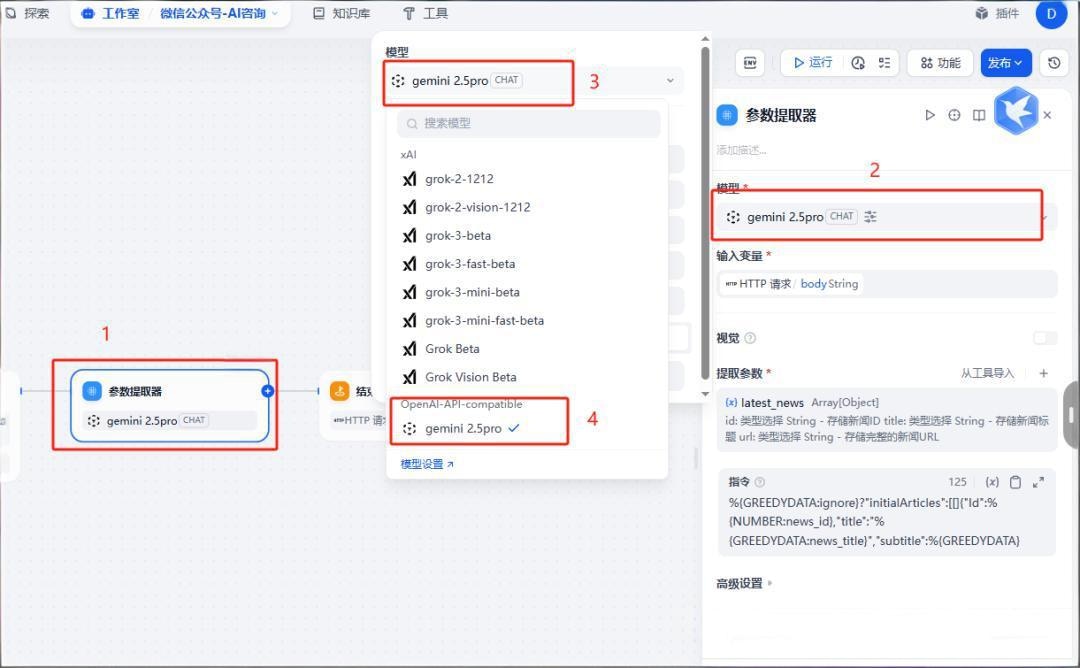
1. Create a new workflow or chatbot
2. Select the model you just configured
3. Run a test to verify everything works
<Frame>
  <img src="https://mintcdn.com/personal-a5418d9f/FONY9Ku9mRTX58KD/images/integrations/dify-10-cn.jpeg?fit=max&auto=format&n=FONY9Ku9mRTX58KD&q=85&s=efe7d07386a3509447bb92d9c8906d07" alt="Test Workflow" width="643" height="832" data-path="images/integrations/dify-10-cn.jpeg" />
</Frame>

<Frame>
  <img src="https://mintcdn.com/personal-a5418d9f/FONY9Ku9mRTX58KD/images/integrations/dify-11-cn.jpeg?fit=max&auto=format&n=FONY9Ku9mRTX58KD&q=85&s=1c72f422d17eac286ae1eb75f72f20d1" alt="Execution Result" width="1080" height="668" data-path="images/integrations/dify-11-cn.jpeg" />
</Frame>

<Frame>
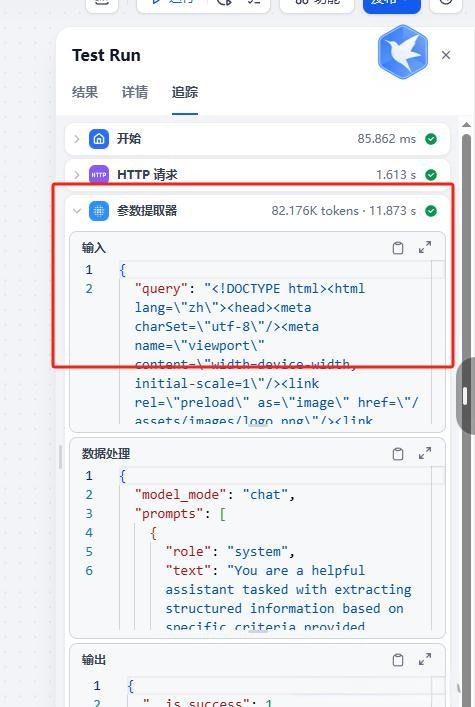
  <img src="https://mintcdn.com/personal-a5418d9f/FONY9Ku9mRTX58KD/images/integrations/dify-12-cn.jpeg?fit=max&auto=format&n=FONY9Ku9mRTX58KD&q=85&s=7ebd46fe6c999e6e50d3bc452ce9ce1c" alt="Cost Comparison" width="475" height="707" data-path="images/integrations/dify-12-cn.jpeg" />
</Frame>

## Advantages

<CardGroup cols={2}>
  <Card title="Cost Effective" icon="coins">
    Competitive pricing
  </Card>

  <Card title="Stable Performance" icon="gauge">
    Same response quality
  </Card>

  <Card title="Easy Integration" icon="plug">
    Simple plugin setup
  </Card>

  <Card title="Full Features" icon="check">
    Chat, embeddings, speech-to-text
  </Card>
</CardGroup>