> ## Documentation Index
> Fetch the complete documentation index at: https://docs.mixroute.ai/llms.txt
> Use this file to discover all available pages before exploring further.
# Cherry Studio
> Cherry Studio Client Integration Guide
## Introduction
Cherry Studio is a powerful AI chat client that supports multiple large language models. With MixRoute API, you can easily use various mainstream AI models in Cherry Studio.
## Quick Integration
### 1. Get API Key
Visit [MixRoute](https://api.mixroute.ai/) to get your API key.
### 2. Configuration
Open Cherry Studio application
Click the settings icon on the left to enter settings page
Select "Model Service" option
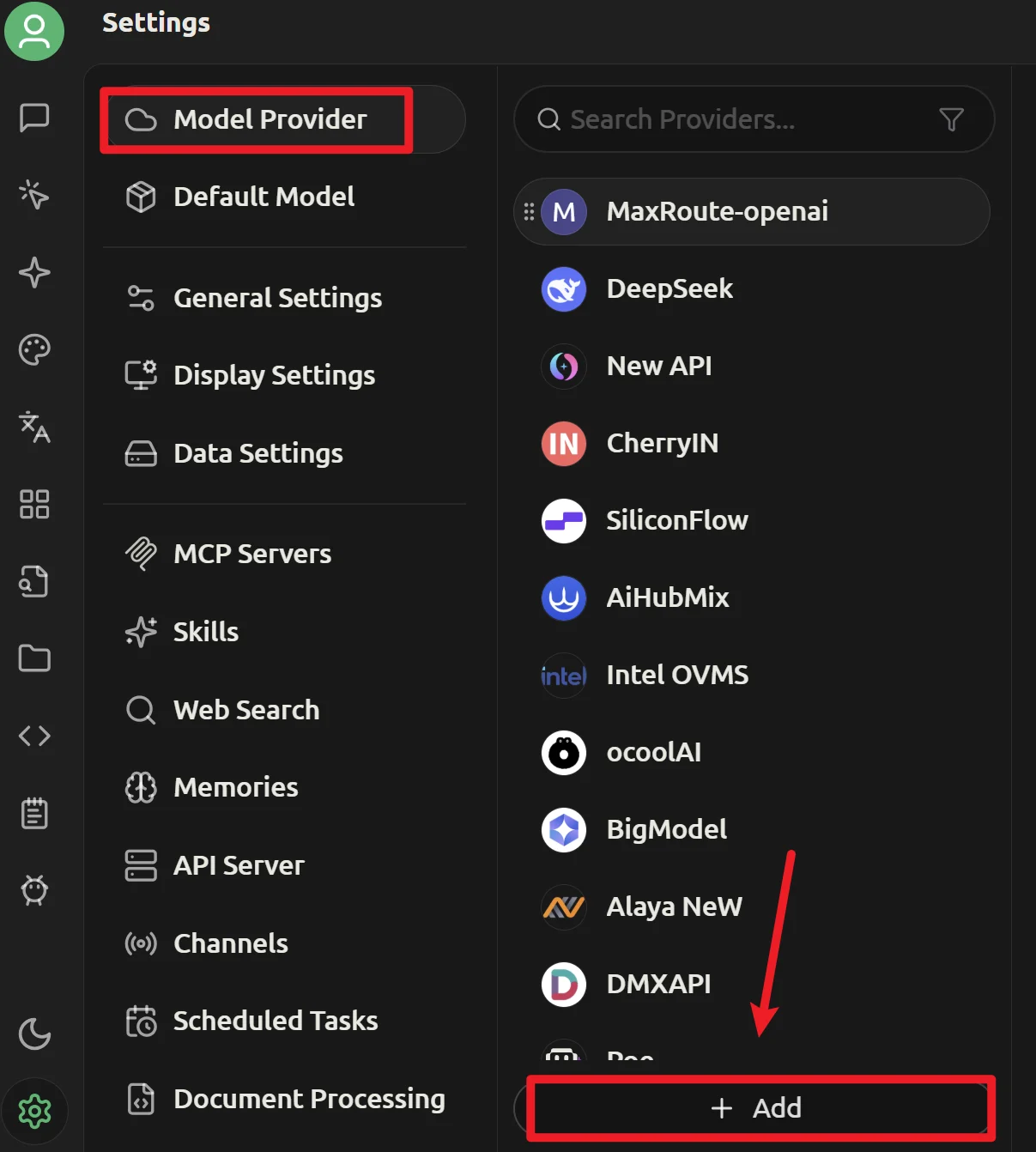 ```text theme={null}
# Select the corresponding provider, using OpenAI's GPT series as an example
API Key :
API Host : https://api.mixroute.ai/v1
Models: gpt-5.5
```
[Smart Routing](https://console.mixroute.ai/smart-route) is an intelligent model routing capability that automatically distributes requests to the most suitable model based on task complexity, reducing API costs while enhancing efficiency.
See [here](/en/smart-routing) for constraints and usage guide.
```text theme={null}
# Using Smart Routing
API Key :
API Host : https://api.mixroute.ai/v1
Models: auto
```
```text theme={null}
# Select the corresponding provider, using OpenAI's GPT series as an example
API Key :
API Host : https://api.mixroute.ai/v1
Models: gpt-5.5
```
[Smart Routing](https://console.mixroute.ai/smart-route) is an intelligent model routing capability that automatically distributes requests to the most suitable model based on task complexity, reducing API costs while enhancing efficiency.
See [here](/en/smart-routing) for constraints and usage guide.
```text theme={null}
# Using Smart Routing
API Key :
API Host : https://api.mixroute.ai/v1
Models: auto
```
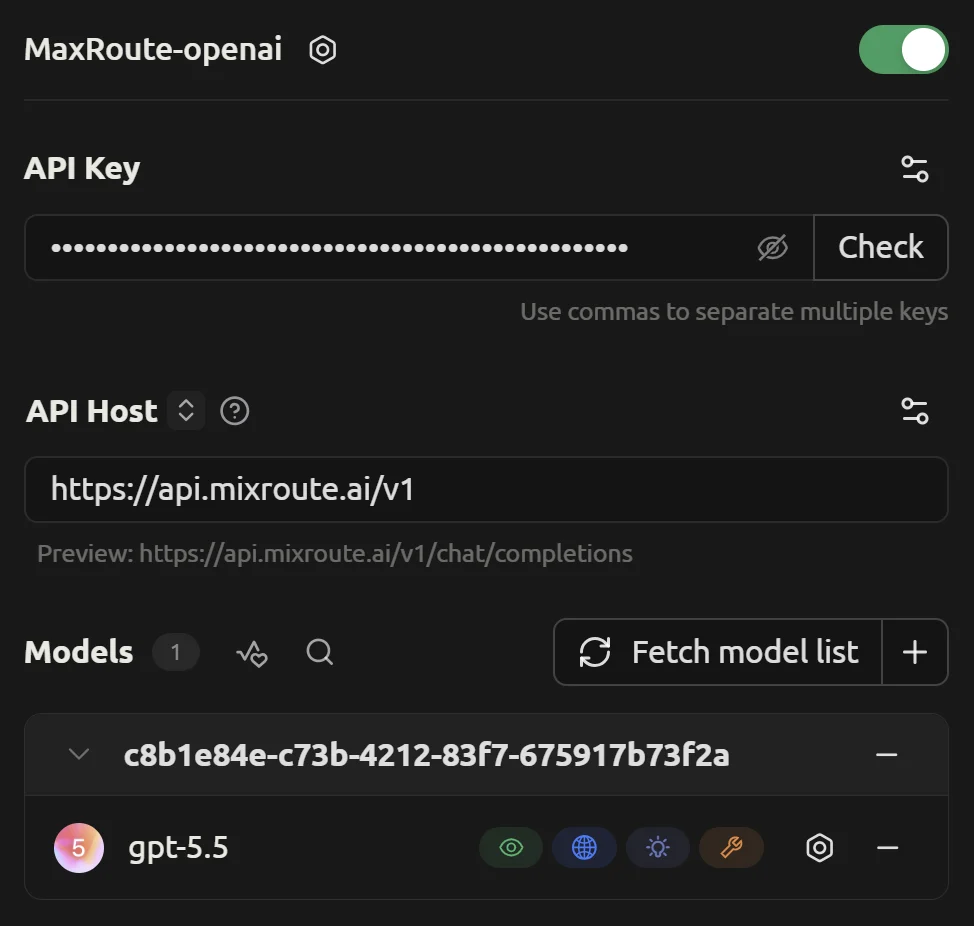 Click "➕ Add" to save
API URL must be `https://api.mixroute.ai`
### 3. Add Models
1. Search for target model in the model search box (e.g., `gpt-5.5`). If using Smart Routing mode, use `auto` directly for task routing.
2. Click the icon next to model name to configure
3. Enable/disable model variants as needed
4. Use right-side buttons for detailed configuration
## Advanced Features
### Image Support
If using a model that supports images (such as `gpt-5.5` or `gemini-3.5-flash`):
1. Enable "Images" in settings
2. Select a vision-capable model
3. Upload images directly in chat
### Streaming Output
Cherry Studio supports streaming output by default for smoother conversations.
## Troubleshooting
* Check if API key is correct
* Confirm API URL is `https://api.mixroute.ai`
* Verify network connection
* Confirm sufficient account balance
* Check if model is in subscription plan
* Try switching to another model
## Model Recommendations
Recommended: `gpt-5.4-mini` (lightweight) or `gpt-5.5` (high quality)
Recommended: `gemini-3.5-flash` or `gpt-5.5`
Recommended: `claude-sonnet-5` or `gemini-3.5-flash` (1M context)
Recommended: `claude-opus-4-8` or `grok-4.20-beta-0309-reasoning`
## Tips
1. **Choose wisely**: Match models to task requirements
2. **Stay updated**: Follow new model releases
3. **Monitor usage**: Check usage via Mixroute Api console
Click "➕ Add" to save
API URL must be `https://api.mixroute.ai`
### 3. Add Models
1. Search for target model in the model search box (e.g., `gpt-5.5`). If using Smart Routing mode, use `auto` directly for task routing.
2. Click the icon next to model name to configure
3. Enable/disable model variants as needed
4. Use right-side buttons for detailed configuration
## Advanced Features
### Image Support
If using a model that supports images (such as `gpt-5.5` or `gemini-3.5-flash`):
1. Enable "Images" in settings
2. Select a vision-capable model
3. Upload images directly in chat
### Streaming Output
Cherry Studio supports streaming output by default for smoother conversations.
## Troubleshooting
* Check if API key is correct
* Confirm API URL is `https://api.mixroute.ai`
* Verify network connection
* Confirm sufficient account balance
* Check if model is in subscription plan
* Try switching to another model
## Model Recommendations
Recommended: `gpt-5.4-mini` (lightweight) or `gpt-5.5` (high quality)
Recommended: `gemini-3.5-flash` or `gpt-5.5`
Recommended: `claude-sonnet-5` or `gemini-3.5-flash` (1M context)
Recommended: `claude-opus-4-8` or `grok-4.20-beta-0309-reasoning`
## Tips
1. **Choose wisely**: Match models to task requirements
2. **Stay updated**: Follow new model releases
3. **Monitor usage**: Check usage via Mixroute Api console